26
8.10 FTP Settings
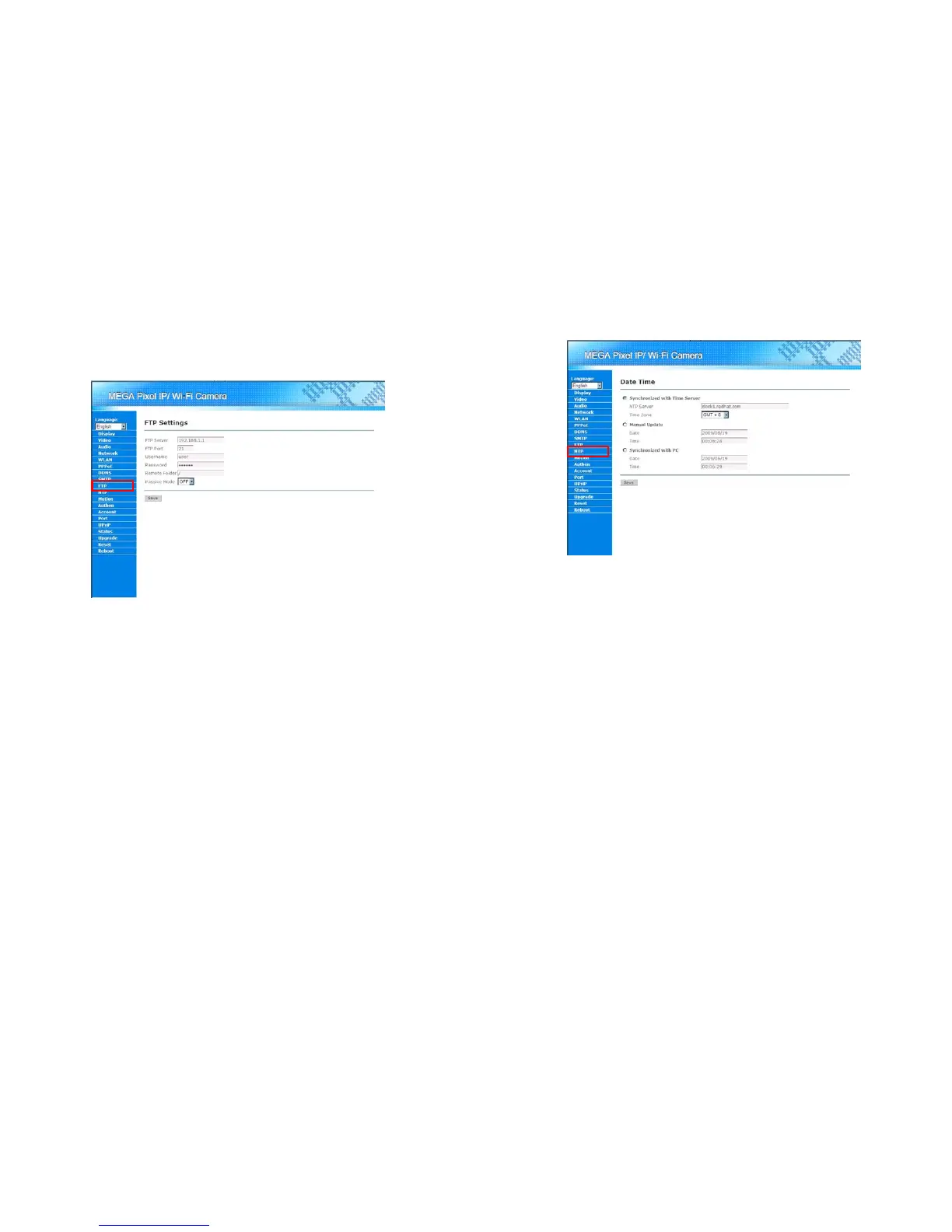
Mega Pixel Wi-Fi Camera supports a build-in FTP client for uploading image or video. When the motion
detection function (see 8.12, Motion Detection Settings) is enabled, user might choose to upload video or
image when motion is detected. Please click on “FTP” in the Menu List for further configuration.
FTP Server: Enter the FTP server’s address that the user wants to use for uploading files.
FTP Port: Enter the FTP port number. The default port used in FTP is 21.
User Name/Password: Enter the account information for logging in the FTP server.
Remote Folder: Enter the remote folder on the FTP server for uploading files.
Passive Mode: If the FTP server supports passive mode, user might enable this function for
utilizing this mode.
Save button: Save the configuration. All configurations should be available after the
configurations are successfully saved.
27
8.11 Date and Time Settings
User could click on the “NTP” in the Menu List for configuring the time of Mega Pixel Wi-Fi Camera.
Synchronized with Time Server: Use a NTP server to configure the time of Mega Pixel Wi-Fi
Camera
-NTP Server: Enter the NTP server the user wants to use.
-Time Zone: Enter the Time Zone in which Mega Pixel Wi-Fi Camera is located.
Manual Update: Configure the time of Mega Pixel Wi-Fi Camera manually.
-Date: Specify the date here.
-Time: Specify the time here.
Synchronized with PC: When this function been selected, Mega Pixel Wi-Fi Camera will
synchronize its time with the PC that is browsing it.
Save button: Save and apply the configuration.



 To Next Page