4
6. Hardware & Software Installation
6.1 Hardware Installation
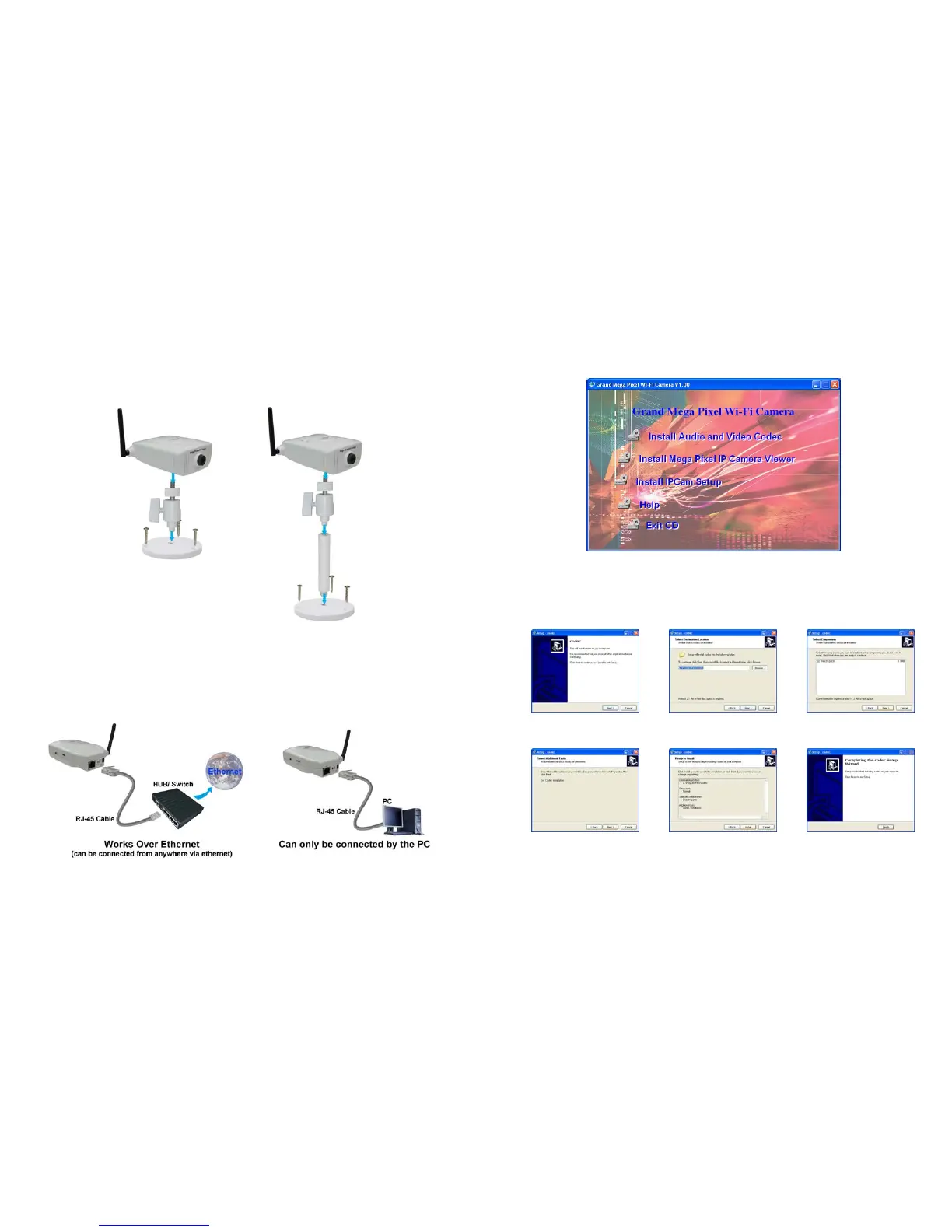
6.1.1 Assembling the Stand
Use the three screws and plugs provided to fix the stand bracket to a wall.
The stand can be adjusted to allow the camera a full 360° of rotation and a pan and tilt action.
6.1.2 Connecting to a Network
Connect the Mega Pixel Wi-Fi Camera to an Ethernet hub or switch by using a standard cable. You
can also connect directly to a computer by using the cross-over wire provided.
5
6.2 Software Installation
Insert the driver CD into your CD-ROM drive, then the autorun function will start up the shell program. If
the autorun window does not display, please execute the Autorun.exe program to bring out the autorun
screen.
Follow the below steps to install the software programs:
Step1: Press the Install Audio and Video Codec to install the audio and video codec.
click Next to continue
select the installation folder
and click Next to continue
Select the DirectX patch
and click Next to continue
click Next to continue
click Install to start
the installation
click Finish to complete
the installation



 To Next Page