6
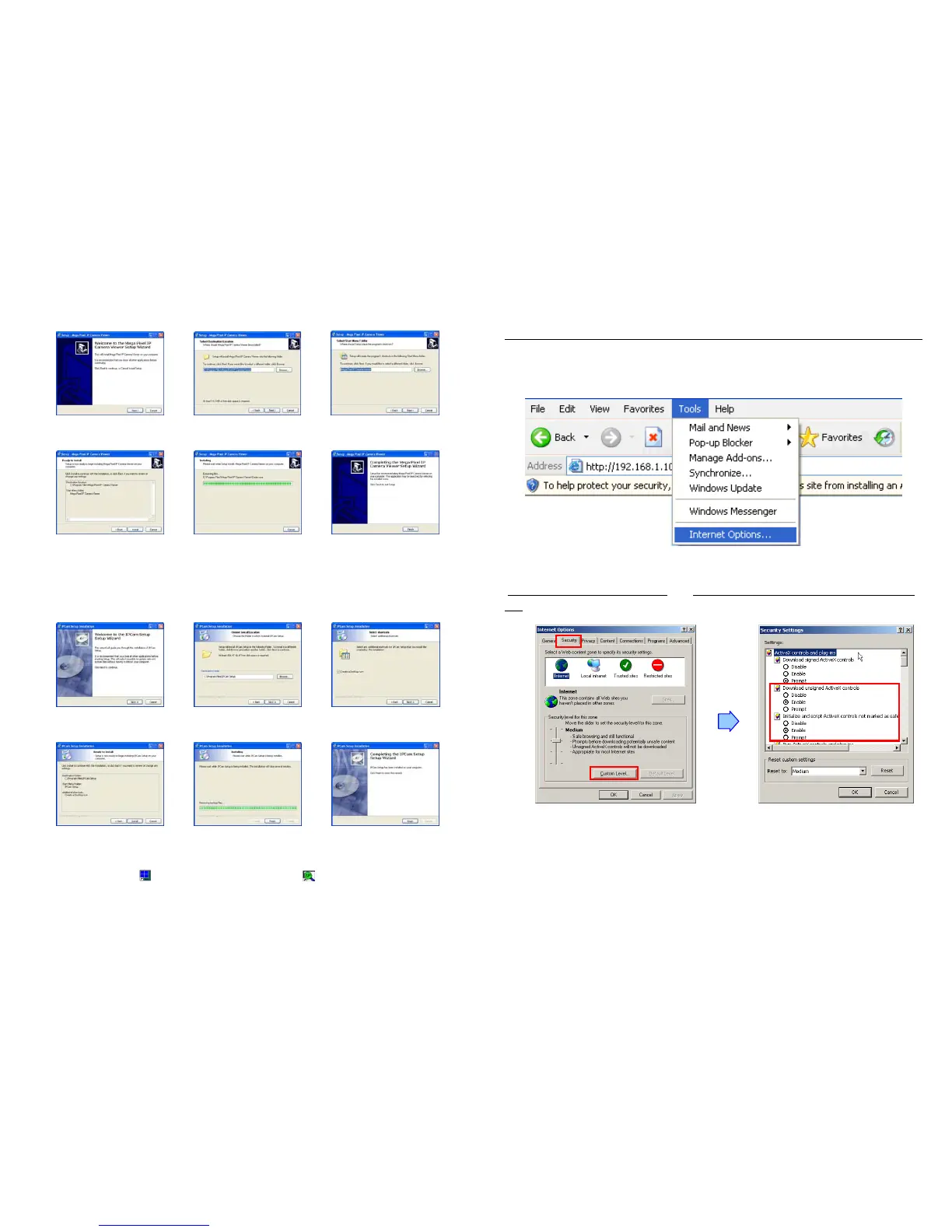
Step2: Press the Install Mega Pixel IP Camera Viewer to install the surveillance software.
Step3: Press the Install IPCam Setup to install the IPCam Setup program.
Step4: The shortcut icons ( Mega Pixel IP Camera Viewer and IPCamSetup) will be shown on
your desktop after installing.
click Next to continue select the installation folder
and click Next to continue
select the start menu folder
and click Next to continue
click Install to start
the installation
Installing click Finish to complete
the installation
click Next to continue
select the installation folder
and click Next to continue
Create a desktop icon and
click Next to continue
click Install to start the
installation
Installing
click Finish to complete
the installation
7
6.3 Internet Browser Settings (IE 6.0)
NOTE: Your browser must be enabled the ActiveX for connect to the Mega Pixel Wi-Fi Camera first time.
Step 1: Start the internet browser.
Step 2: Click the “Tools” at the top of the screen, and select “Internet Options…”.
Step 3: Select the “Security” tab, and click the “Custom Level”. Set to “Enable” or “Prompt” on the
“Download unsigned ActiveX controls
” and “Initialize and script ActiveX controls not marked as
safe” items.



 To Next Page