TSYS
SRCH
SWPR
To filter browse for a specific type of object, press the softkey
that corresponds with that object type. For example, press the
CONV softkey, then use the keys on the 5-way
pushbutton pad to browse only conventional objects.
Object Lockout
The
L/OUT key is used to lock out objects. When an object is
locked out, traffic is not received on that object until it is
unlocked, even if the object is mapped to more than one Scan
List. Locking out an object locks it out “radio-wide” until it is
enabled by toggling the lockout setting.
Four types of lockout functions are available in the 0716,
temporary lockout
, permanent lockout, search lockout and
talkgroup lockout
.
Temporary Lockout
Temporary lockout locks out an object until the scanner is turned
off. When the scanner is powered on again, all objects that have
been temporarily locked out are restored.
By default, the
L/OUT key activates temporary lockout when
pressed. If desired, you can change the function of the
L/OUT
key in the GLOB radio wide settings by pressing PGM, then the
GLOB softkey. Scroll to the TLO=FUNC L/O setting and press the
key to toggle the setting to YES to have the
L/OUT key
function as a permanent lockout instead of temporary lockout.
To apply temporary lockout to an object, press the
L/OUT key
while the scanner is stopped on that object during scan
operation, or navigate to an object using the 5-way pushbutton
pad while in Manual Mode or PGM mode and press the
L/OUT
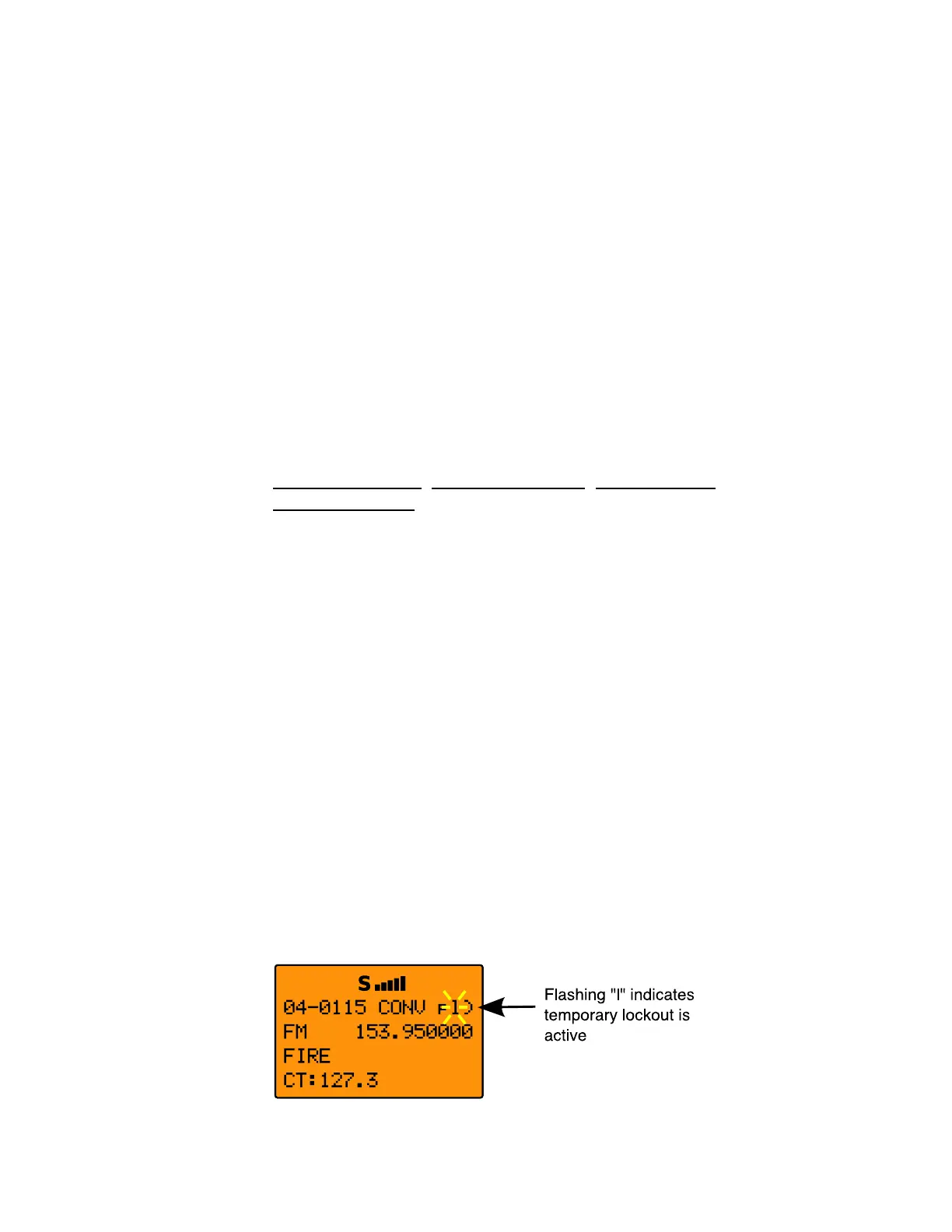
key. The lowercase “l” in the display flashes to indicate that
temporary lockout is applied to the object:
0716 User Manual Page 60



 To Next Page