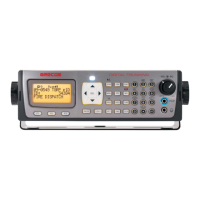
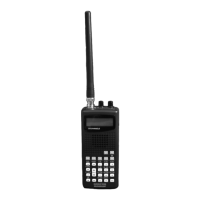
Your scanner uses a simple text entry method that allows entry of
all uppercase and lowercase letters of the alphabet, numbers,
and punctuation symbols. Your scanner also features GREs
exclusive QuickText feature, which allows you to store up to 10
commonly used text items for instant recall while editing
alphanumeric fields.
Entering and Editing Alphanumeric Information
A Standard Text Entry Method is used for entering alphanumeric
information into the radio. This method allows easy access to
each letter in the alphabet by pressing two keys that represent
the letter.
Take a moment to study the numeric keys on the keypad and you
will notice that keys 2-9 each have three or four letters silk
screened on the front panel just above each key. To enter a letter
in an alphanumeric text field, simply press the number key below
the letter you wish to type first, then press the number key that
corresponds with the position of the letter in the silk screen
group. For example, the number 2 is used to access the letters
A, B and C. To type the letter A, press
2 to select the ABC group,
then
1 to select the first letter in the group, A. Likewise, to type
the letter B, press
2 to select the ABC group, then press 2 again
to select the second letter in the group. And, to type the letter C,
simply press
2, then 3 to select the third letter in the “ABC”
group.
To enter numbers in alphanumeric text fields, press
1 first, then
the number you wish to type.
To enter punctuation, press
0 first to see the first set of
punctuation, then press the number key that corresponds with
the position of the desired punctuation mark in the set.
Press the
. (period) key to enter a SPACE.
While using Standard Text Entry, the
FUNC key serves as a shift
key. For letters, uppercase text is typed by default, and you can
shift to lowercase by pressing the
FUNC key before entering a
character. For punctuation, the
FUNC key accesses a second set
of punctuation marks.
Use the keys to move the cursor to the desired location in
edit fields. Press
FUNC or FUNC to move the cursor to the
beginning or end of an edit field, respectively. Use the
CLR as a
backspace key, and press
FUNC CLR to clear the entire field.
0716 User Manual Page 89



 To Next Page