30
Internet radio/ DAB/ FM
• When the alarm activates, press [volume -/+]/[
]to
stop the alarm.
• Repeatedly press [SNOOZE]or[SNOOZE]onthe remote
control to activate snooze mode.
• The alarm turns off for the selected time interval
(5/10/15/30/60 minutes) beforeactivating once again.
• Repeatedly press [SNOOZE]or[SNOOZE]onthe remote
control to activate ON instead of snooze mode. The radio
now stays switched on.
• If the alarm is not stopped, the radio automatically
switches into standby mode after one hour.
15. System settings
Youcan modify all settings and access important
information about the radio in the System settings.
15.1 Equaliser
The equaliser allows youtoadjust thesound of theradioto
suit your preferences by amplifying or reducingthe amount
of bass or trebleinthe audio .
Youcan choosefrompreconguredproles, adjusted to suit
avariety of music genres, or create yourown custom prole.
• To set the Equaliser,proceed as follows:
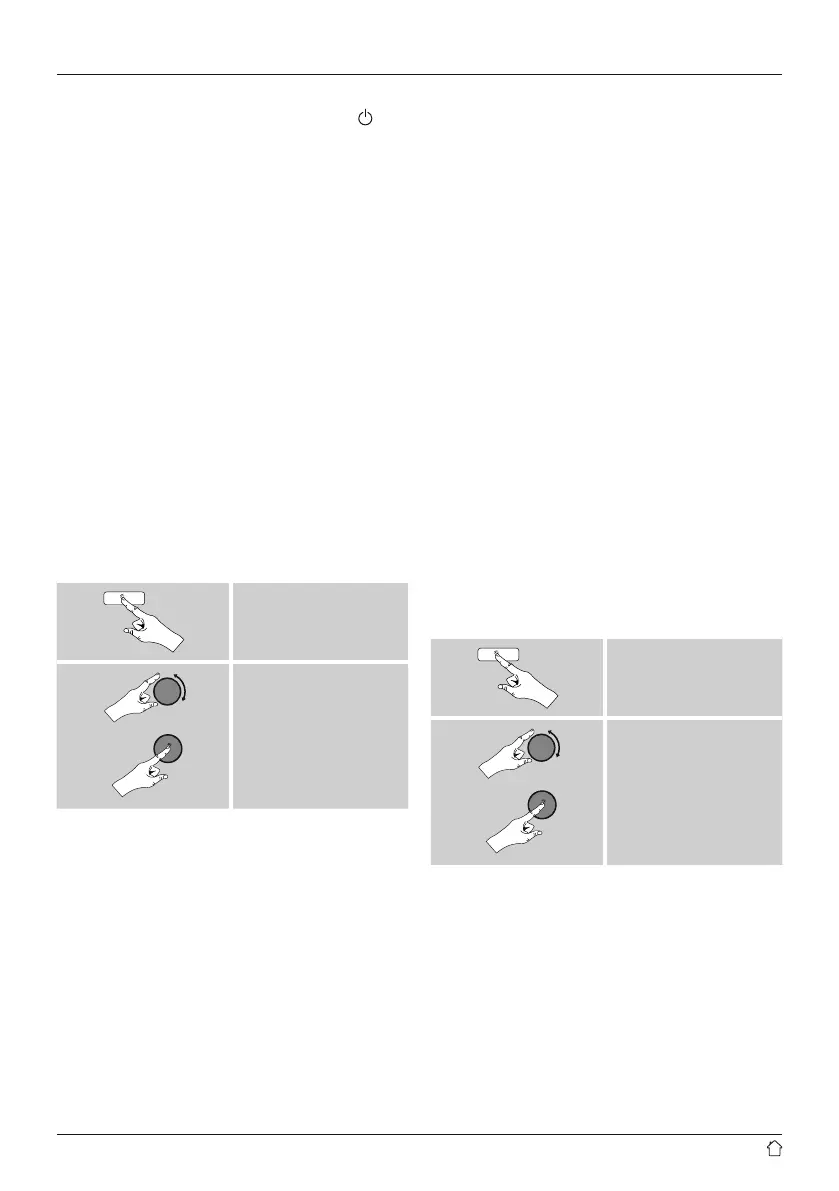
[menu]
System settings
Equaliser
• Use [enter/navigate]tochoose one of the
precongured proles.
• To create your own equaliser prole, choose the option
My EQ prole setup.
• This takes you to the settings for Bass, Treble and
Loudness (volume amplication).
• To adjust aparticular value, press [enter/navigate]
at the corresponding menu item and then change the
value by turning [enter/navigate]. If playback is already
started when you modify these settings, you can hear the
changes in the audio immediately.
• Conrm your settings by pressing [enter/navigate]once
more.
• Complete the conguration process by pressing [back]
on the device and conrm the saving of settings by
pressing [enter/navigate].
• To use the new prole, choose the item My EQ.
15.2 Network
15.2.1 Network wizard –Configuration of internet
connection /Automatic search
The Network wizard supports you to set up a
connection between the radio and internet. Hereby you
can choose between awired LAN connection and a
wireless connection using WLAN/Wi-Fi. Moremethods
of conguration and detailed information areamplied
subsequently.
• Youcan start the Network wizard as follows:
[menu]
System settings
Network
Network wizard
• When the wizardisstarted, the radio searches for WLAN
(WiFi) connections and then shows alist of the available
networks.
• Turn [enter/navigate]toswitch amongst the networks
discovered. At the bottom of the list areoptions to
restart the search ([Rescan]), select acable connection
([Wired]) or congurethe connection yourself ([Manual
cong]).
• If your network is not found or the SSID (Service Set
Identication, that is, the name of your network) is not
shown, the network may be hidden or out of range. In
this case, try manual conguration or connecting by LAN
cable.


 To Next Page