39
1 Open the home page (all audio systems)
2
Selection of the various sources (dependent on
the active device/the devices in the group)
3
Open the favourites list (storing and selecting
favourites)
4 Sharecurrent station
5 Volume control for the group or active device
6
Advanced settings (equaliser/date/factory
settings, dependent on the device)
7 Switch device/group to standby
8 Browse current source
9 Playback screen of the device/group
10
Display the function buttons (Play,Next,
Previous), dependent on the source
11
Volume control for the individual devices of a
multi-room group
16.4 Creating/managing multi-room groups
If thereare several multi-room-enabled devices in your
network, they will appear in the selection list with a‘+’
symbol after their name.
The device that you have selected in the list by tapping
the
con willbethe master when the group has been
created. This means that audio being played on the master
is continued in the group.
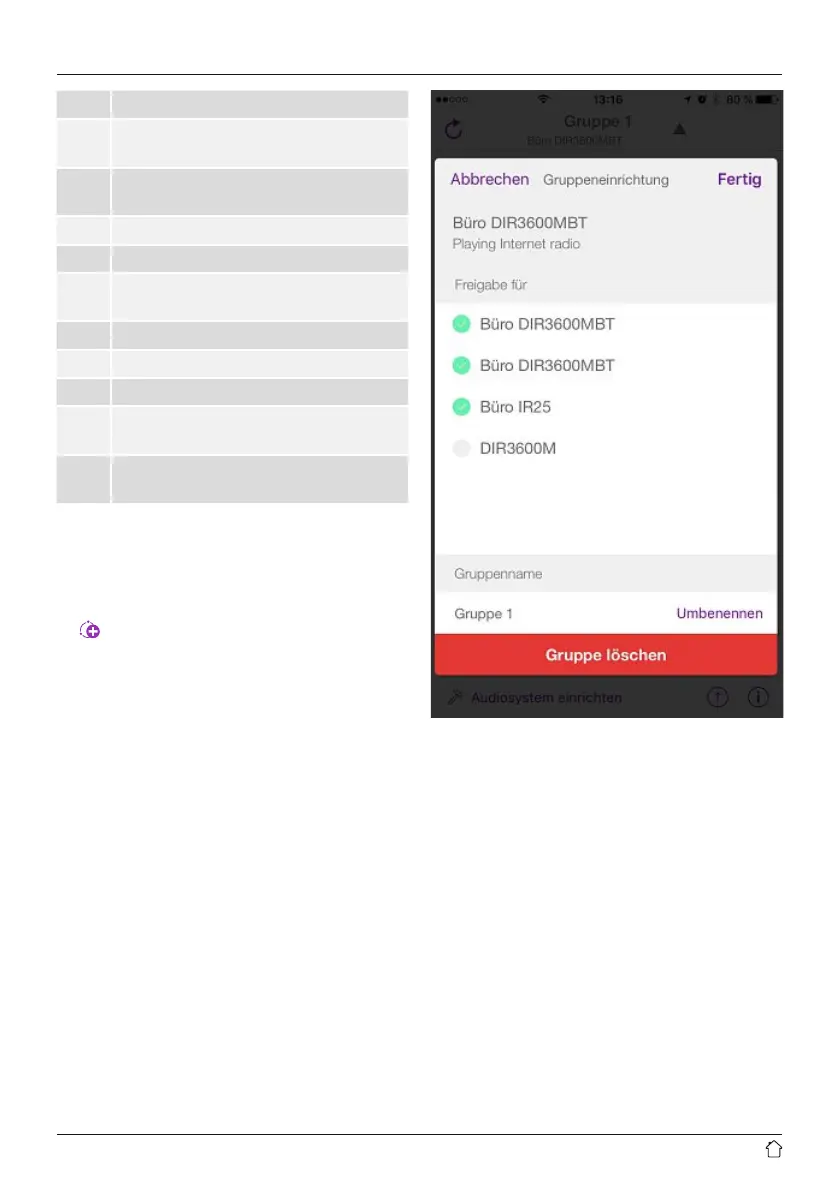
Once you have tapped the icon, ascreen appears in which
all compatible devices arelisted. Tapeach of the devices
you would like to have in the group, and conrm your
selection with Done.
In this window,you can also delete an existing group and
thereby dissolve it, or give the group anew name. (See
Figure3–‘Group name’)
Please note that it is sucient if one device in the group
supports asource such as Spotify,Bluetooth* or CD, and
can shareitwith the other devices in the group.
*When playing audio via Bluetooth, the source
(smartphone, tablet, PC) must be located near the device
in which the corresponding receiver is integrated. .


 To Next Page