32
Open network
Note
• We recommend against establishing unsecured
connections and advise you to always protect your
network against unauthorised access.
• If you plan to use an open network, you just have
to select the network ID from the list of available
networks and conrm.
• The radio then connects immediately to the network.
15.2.3 Wired network connection (LAN)
• Connect the radio to the router using aLAN cable. This
method of direct connection is the most reliable and
least susceptible to interference.
• The cable connection is listed amongst the available
connections as Wired.Simply select it to proceed. If the
DHCP server of the router or access point is active, then
the connection is now established automatically.
• To nd out how to determine whether the DHCP server is
active, please consult the operating instructions of your
router or access point.
15.2.4 Manual configuration of network
connection –wireless (WLAN) and wired (LAN)
• To manually congurethe network connection, proceed
as follows:
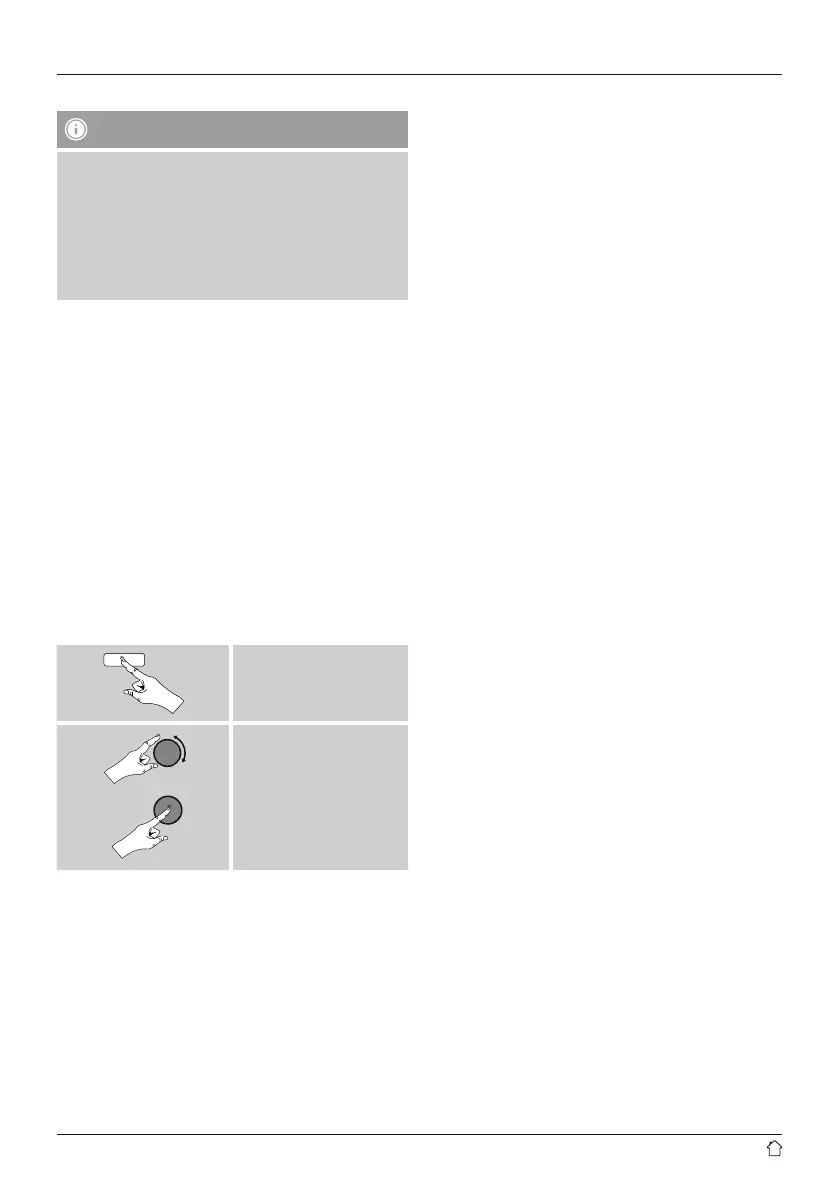
[menu]
System settings
Network
Manual settings
Manual conguration wired (LAN) –DHCP enable
• Select the option Wired.
• Select the option DHCP enable.
• The connection is now established. No further setting
adjustments arerequired.
Manual conguration wired (LAN) –DHCP disable
• Select the option Wired.
• Select the option DHCP disable.
• Enter the necessary network information, such as the
IP address, subnet mask, gateway address and DNS
(primary and secondary).
Find this information in the web interface of your router
or access point, or ask your network administrator.Once
all the information has been entered correctly,conrm
to proceed. The radio now attempts to establish the
connection.
Manual conguration wireless (WLAN) –
DHCP enable
• Select the option Wireless.
• Select the option DHCP enable.
• In the input screen, enter the whole SSID (network name)
and then conrm with OK.
• Now choose the security standardused by the network.
This can be found in the conguration options of your
router or access point.
• Depending on the encryption used, you may need
to enter the network key beforethe connection is
established..
Manual conguration wireless (WLAN) –
DHCP disable
The method described hereassumes the DHCP server is
active (manual wireless conguration(WLAN) –DHCP
enable). However,the network information such as IP
address, subnet mask, gateway address, and DNS (primary
and secondary) must still be entered.
Find this information in the web interface of your router
or access point, or ask your network administrator.Once
all the information has been entered correctly,conrm
to proceed. The radio now attempts to establish the
connection.


 To Next Page