31
15.2.2 Wireless network connection (WLAN)
Depending on the network, thereare anumber of ways to
connect to it.
Networks that support connection via WPS (Wi-Fi Protected
Setup) areidentied in the list as [WPS].
Other connections areeither open networks or connections
protected with aPSK, or Pre-Shared-Key.
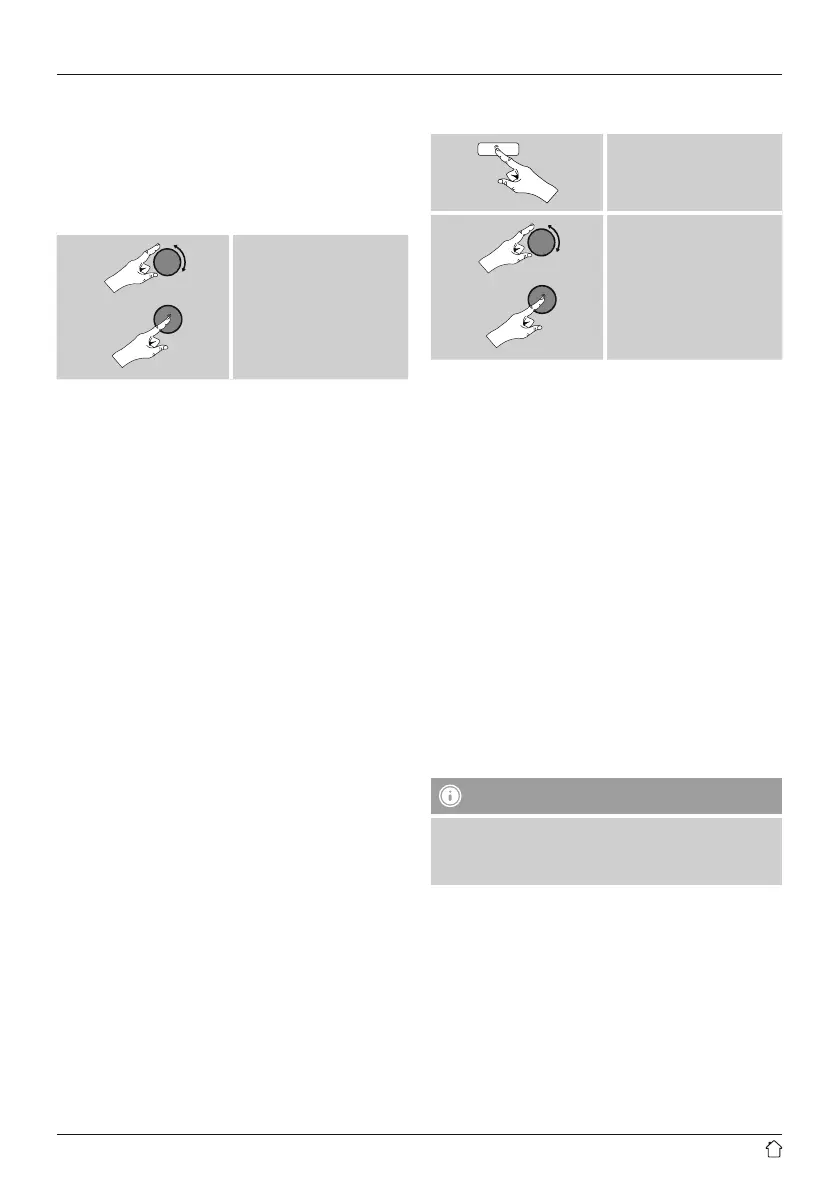
Desired Network
WPS-/PSK-/ open network connection
WPS allows simple and nevertheless protected connection
of the radio to the network. Twooptions areavailable
for this purpose: The connection can be set up by means
of PBC, or Push-Button Conguration, or by the PIN
procedure, in which the web interface of your router
prompts you to enter arandomly generated sequence of
numbers.
PBC setup
• Select your desired network. (Indicated by the prex
[WPS])
• In the WPS menu, choose the Push Button option and
conrm your selection by pressing [enter/navigate].
• Press the WPS button on your router or current access
point. This can often be done using the web interface,
as well.
• Consult the operating instructions of your router or
access point for details.
• Once the process has been started on the router or
access point, the radio should be able to nd and
connect to the network.
• Alternatively,PBC setup can be initiated from the internet
settings of the radio:
[menu]
System settings
Network
PBC Wlan setup
PIN setup
• Select your desired network. (Indicated by the prex
[WPS])
• In the WPS menu, choose the Pin option and conrm
your selection by pressing [enter/navigate].
• The radio generates an 8-digit code, which must be
entered into the web or user interface of your router or
access point.
• Consult the corresponding handbook for details on
conguring the router or access point.
Skip WPS /Pre-Shared Key(PSK) setup
• Choose the item Skip WPS to proceed to key entry.
• In networks that do not support WPS, you will go directly
to key entry.
• In the input screen, enter the whole key and then conrm
with OK.
• If the key was entered correctly,the radio connects to
the access point and establishes the internet/network
connection..
Note
• Often the Pre-Shared Keyisprinted on the back or
bottom of the router or access point.
• When entering the key,take notice of capitalisation.


 To Next Page