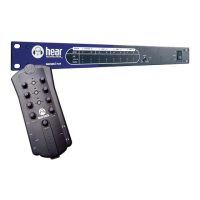
Hear Back PRO User Guide
TROUBLESHOOTING AND OPERATING TIPS
*Note: Some problems require you to refer to the A-B-C-D error code LEDs below the HBUS ports on back of Hub.
No Audio Output
• Verify the Hub is powered on.
• Check input connections.
• Make sure input selector switch is in the proper position for your audio source – HBUS, input A (slots 1 & 2), or
input B (slots 3 & 4).
• Verify the status-indicating logo on both the Hub and Mixer are both BLUE.
• Check your headphones, wireless transmitters/receivers, monitor amplifiers, etc., to verify they are functioning
properly.
Hub Logo is solid RED
Refer to the A-B-C-D error code LEDs below the HBUS ports on back of Hub:
• If no error code LED is lit:
○ No clock is present.
○ If using an Analog Input card:
− Verify the input selector switch is in the correct position.
− Verify an Analog Input card is present in either slot 1 (for input A) or slot 3 (for input B).
− If the problem still persists, please call customer service.
○ If using any Digital Input card:
− Verify the digital source is functioning correctly – powered on and sending clock.
− Verify the input selector switch is in the correct position.
− Verify the Digital Input card is present in either slot 1 (for input A) or slot 3 (for input B).
− If the problem still persists, please call customer service.
• If error code LED A, B, or A & B are lit:
○ An internal problem is present. Please call customer service.
• If error code LED C is lit:
○ No firmware file can be found on the internal SD card. Connect the Hub to a computer via USB. The Hub will
appear on the computer as a mass storage device named HBPRO. Download the latest firmware file from our
website, and simply drag and drop the file onto the HBPRO, then reboot the Hub.
• If error code LED D is lit – alone or in combination with any other error LEDs:
○ An internal power problem has occurred. Please call customer service.
Hub Logo is blinking RED
Refer to the A-B-C-D error code LEDs below the HBUS ports on back of Hub:
• This is typically an overheating problem – if so, error code LEDs A, B, & C will be lit.
○ Allow adequate ventilation for Hub as specified in owner’s manual.
• If any other combination of error code LEDs are lit, please contact customer service.
Hub Logo is PURPLE
• Verify that there are not two 16-channel input cards on the same input (e.g. slot 1 & slot 2)
○ The Hear Back PRO Hub cannot have more than one 16-channel input card on the same input
• If using an off-the-shelf network switch, it might utilize a function known as EEE (Energy Efficient Ethernet).
○ Attempt to bypass the network switch, making a home run from Hub to Mixer, to verify this is the problem –
if so, try a known good network switch from the list at the beginning of the Hear Back PRO User Guide.
Hub Logo OFF
• Verify power switch is on.
• Verify the Hub is receiving power by checking for a yellow LED beneath the power port on the back of the Hub.
This LED should be lit when the power supply is connected, even with the Hub powered off.
• If the yellow LED is not lit:
○ Verify the external power supply is the unit provided by Hear Technologies.
○ Replace external supply with known good unit.
Sampling Rate LED is
blinking (FW V5 only)
• Hub is not set to the same sampling rate as the other Hubs in the system. It can also indicate that there are too
many Hubs connected:
○ Maximum of 4 Hubs for 44.1 kHz, 48 kHz, 88.2 kHz, and 96 kHz
○ Maximum of 3 Hubs for 176.4 kHz and 192 kHz
○ All other Hubs must be set to “HBUS” input
14
NOTES


 To Next Page