Quick Start Guide REX 300 15
Cloud server
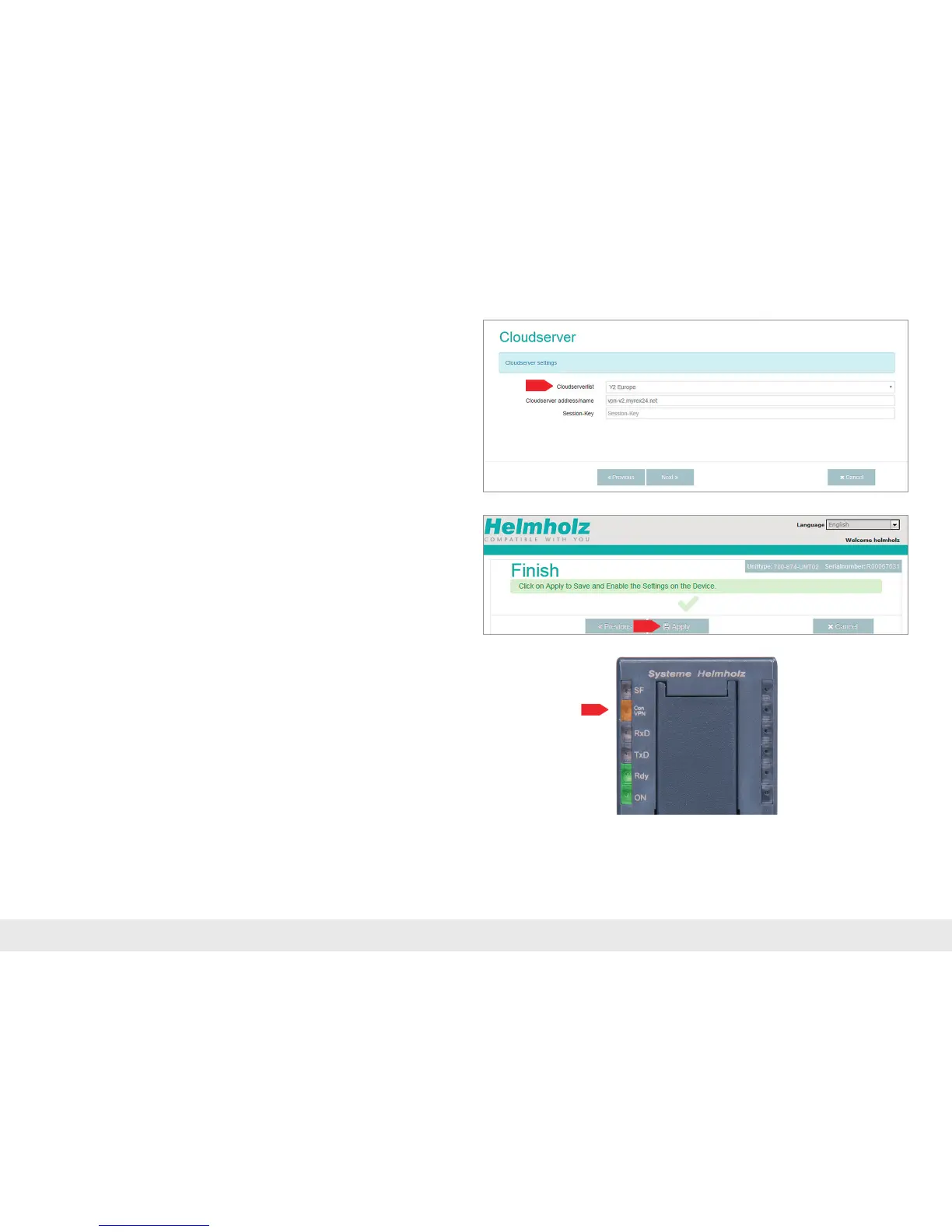
Selectthefollowingsettingfromthelistofportalservers:"V2Europe".Thecode
forthesessionkeyisoptionalandisdenedduringsynchronization.Noentryis
requiredforinitialcommissioning.
Conrmwith"Next".
Complete
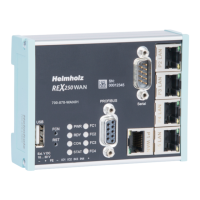
Thesettingsintheassistantarenowcomplete.Clickon"Apply".TheREX300saves
theentriesandyouarethenforwardedtothe"DeviceStatus"page(seechapter
5.2.4,page17).Theindividualconnectionstepsaredisplayedthereinformatively.
As soon as the REX 300 has successfully connected with the myREX24-V2 portal
throughtheInternet,itpicksupthecongurationstoredforitandactivatesit
automatically.
Automatic download of the confi guration
If the REX 300 is able to establish an Internet connection, the router will connect to
themyREX24portalandverifyitselfusingitsserialnumber.
The successful establishment of a connection is indicated on the REX 300 by a slowly
ashing"ConVPN"LED(seeLEDdescriptiononpage26,chapter11).
IfacongurationleisavailableonthemyREX24-V2portal,itwillbeautomatically
loaded onto the REX 300 and enabled.



 To Next Page