5-16 System Operation
SET ROTARY AXIS Menu
The Rotary Fixture Axis is a setting that is pre-set at the factory. The laser system will sense
when the Rotary Fixture is plugged in and will position the X-Axis arm directly over the
centerline of rotation automatically when it begins to engrave. This setting can be altered if you
position the Rotary Fixture in a location OTHER than the factory set position. Please refer to
the section on the optional Rotary Fixture for a full description on how to set up and use this
device before altering any factory setting.
To change the factory default setting, turn the laser system OFF, place the Rotary Fixture on
the engraving table in the desired position, and DO NOT plug the Rotary Fixture into the
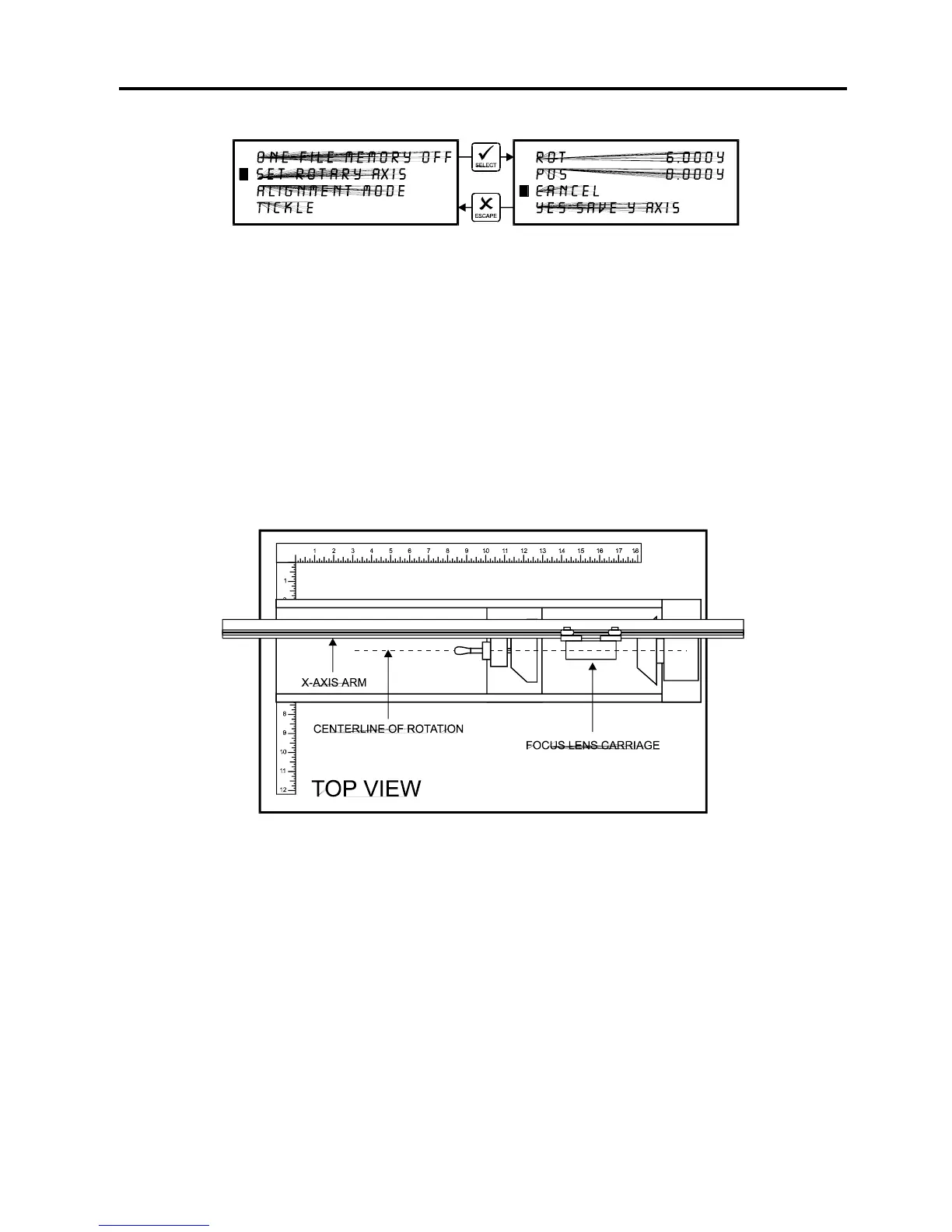
electrical socket. Now turn the laser system on and with the motion system arrow buttons,
position the X-Axis arms focus lens carriage directly over the Rotary Fixtures centerline of
rotation as the following diagram illustrates:
The left and right position (X-position) of the focus carriage is irrelevant in this setting and is not
shown in the display. Now select the “YES SAVE Y AXIS” choice. If you change your mind and
do not wish to alter the “ROTARY AXIS” position, select “CANCEL” instead and the original
settings will be restored. Remember, always escape back to the “MAIN” menu before turning
the system off so that your settings will be permanently stored in memory.
If you would like to get the Rotary axis back to the original factory default setting, go back into
the “SET ROTARY AXIS” menu. While in this menu, press the up arrow and down arrow keys
simultaneously. The arm move will move back to its original factory default setting. Select
“YES SAVE Y-AXIS”, and then press the “ESCAPE” key twice to exit back to the “MAIN” menu
to store this setting permanently.


 To Next Page