7-4 Accessories
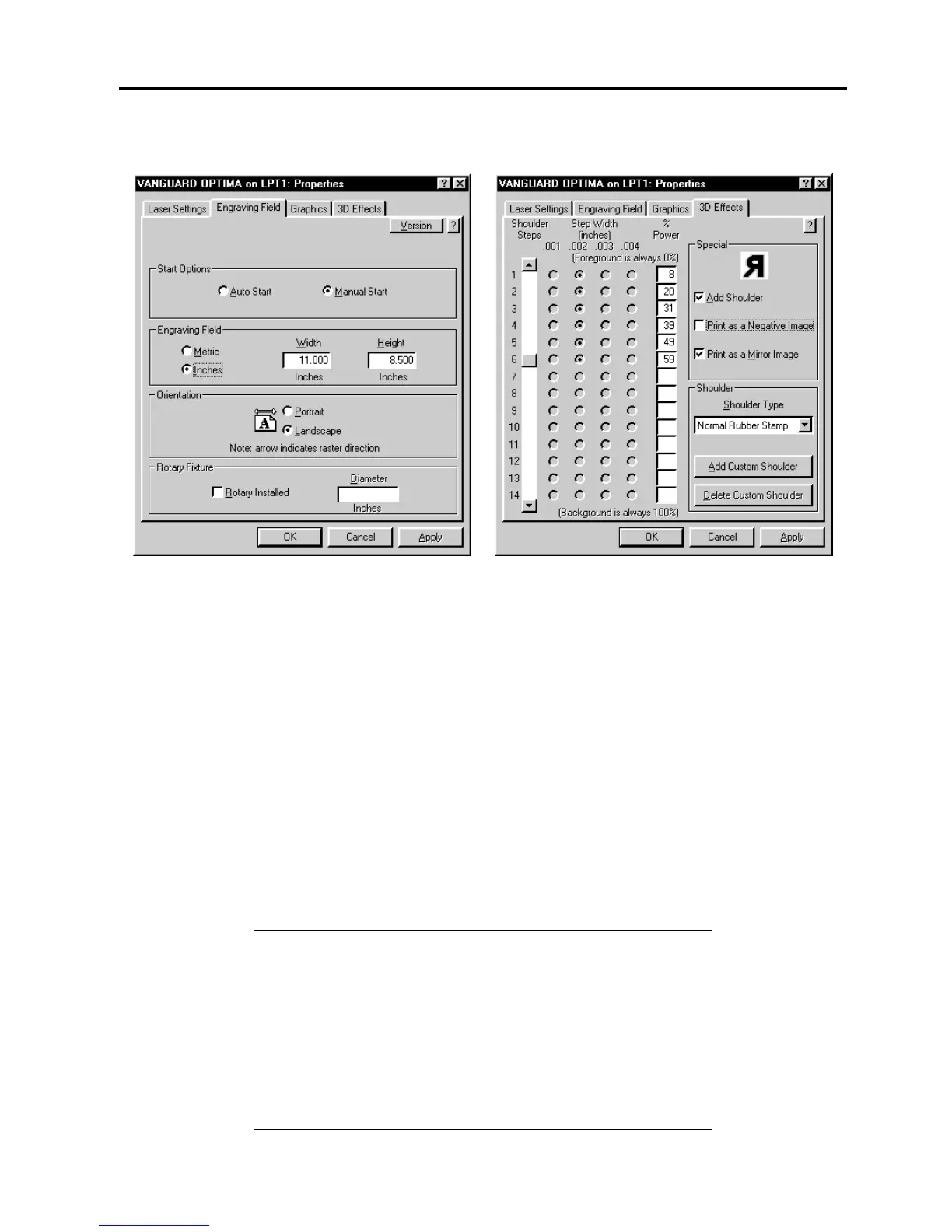
Also set the following in the printer driver.
As you can see, we set the page size in the driver equal to the graphics programs page size.
We also selected "ADD SHOULDER”, “NORMAL RUBBER STAMP”, and “PRINT AS MIRROR
IMAGE”. We did not choose “PRINT AS NEGATIVE IMAGE” because this switch is only used
when printing a full sheet of stamps. For more details on how to use and set the other shoulder
types for the “3D EFFECTS” option, please refer to Section 3 on Driver Controls.
After making all driver selections, print the graphic to the laser system. Start engraving and
notice that the stamps are being engraved as a mirrored image and are in the correct position
on the rubber sheet. The background area, since it is colored black is being engraved and the
letters remain standing up. When the engraving part is done, the stamp gets cut out along the
red cut line due to the higher power setting that was assigned in the driver for the color red.
Full Sheet Method
The second method is to create a full sheet of rubber stamps and engrave them all at the same
time. First create a stamp as a positive image as shown below. Create more stamps to fill the
entire page. They can be the same stamp or different ones.


 To Next Page