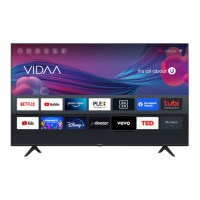
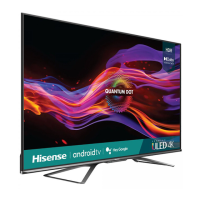
Benefits of Smart TV
How to start Google Assistant
You can choose this way to start Google Assistant:
•
Press button on your remote control.
Note:
• The Google Assistant function may not be applicable in some models/countries/regions.
• The setup steps above may vary depending on actual products.
Hands-free Voice Control
Google Assistant can answer your questions or help you change TV configuration.
Before using this function, connect the TV to the Internet and sign in your Google account, by pressing ,
select Settings > Accounts and sign-in
Note:
• Hands-free Voice Control may not be applicable in some models/countries/regions.
How to set up Hands-free Voice Control
1.
Switch the control button on the bottom of the TV to to turn on the microphone.(If there's no indication
mark, switch the control button to the left to turn on it. The function may change due to product upgrade.)
2.
Pair the remote first, press button to select "Yes, I'm in".
3. Start a conversation by saying "Hey Google", and the dialog bar appears at the top of the TV screen. At the
same time, indicator lights illuminate(if it has the indicator).
4. Continue speaking, such as "What's the weather" or "volume up".
Screenless mode
> Settings > System > Advanced System > Screenless Mode
Talk to Google Assistant when the screen is off.
In Screenless Mode, Google Assistant is always available to help even when the screen is not on. Just say
"Hey Google".
This feature will affect standby power consumption.
Note:
• Google Assistant and some features are available on limited country/region/language.
• Screenless mode is only for models with far-field Google Assistant.
Alexa Setup
Set up to control your TV with any Alexa-enabled devices. Alexa can help you change the TV configuration.
Using just your voice, you can change inputs, volume, channels, and more. Just ask Alexa.
What is required to control your TV with Amazon Alexa?
• Android TV models that support the Alexa skill.
• Amazon Echo device or Alexa App.
• Amazon account for Alexa App or Echo device, if you don't have the account, please create one before the
setup process.
15


 To Next Page