Connecting to External Devices
• An AirPlay-enabled TV.
• The TV and Apple devices are connected to the same network.
• The icon is only for reference. In some apps, you may have to tap another icon first.
• If an AirPlay passcode appears on your TV screen, enter the passcode on your Apple device to continue.
Using HomeKit
Use HomeKit to easily and securely control your TV using your Apple devices.
1. To set up HomeKit, open AirPlay and HomeKit settings on the TV. Locate the HomeKit section and select
'Set Up'.
2. The HomeKit setup screen will display a pairing QR code on the TV. Use your iPhone or iPad to scan the
QR code, then follow the on-screen directions to complete HomeKit setup.
Note:
• Available operations vary depending on the version of the app and software.
Connecting Headphones
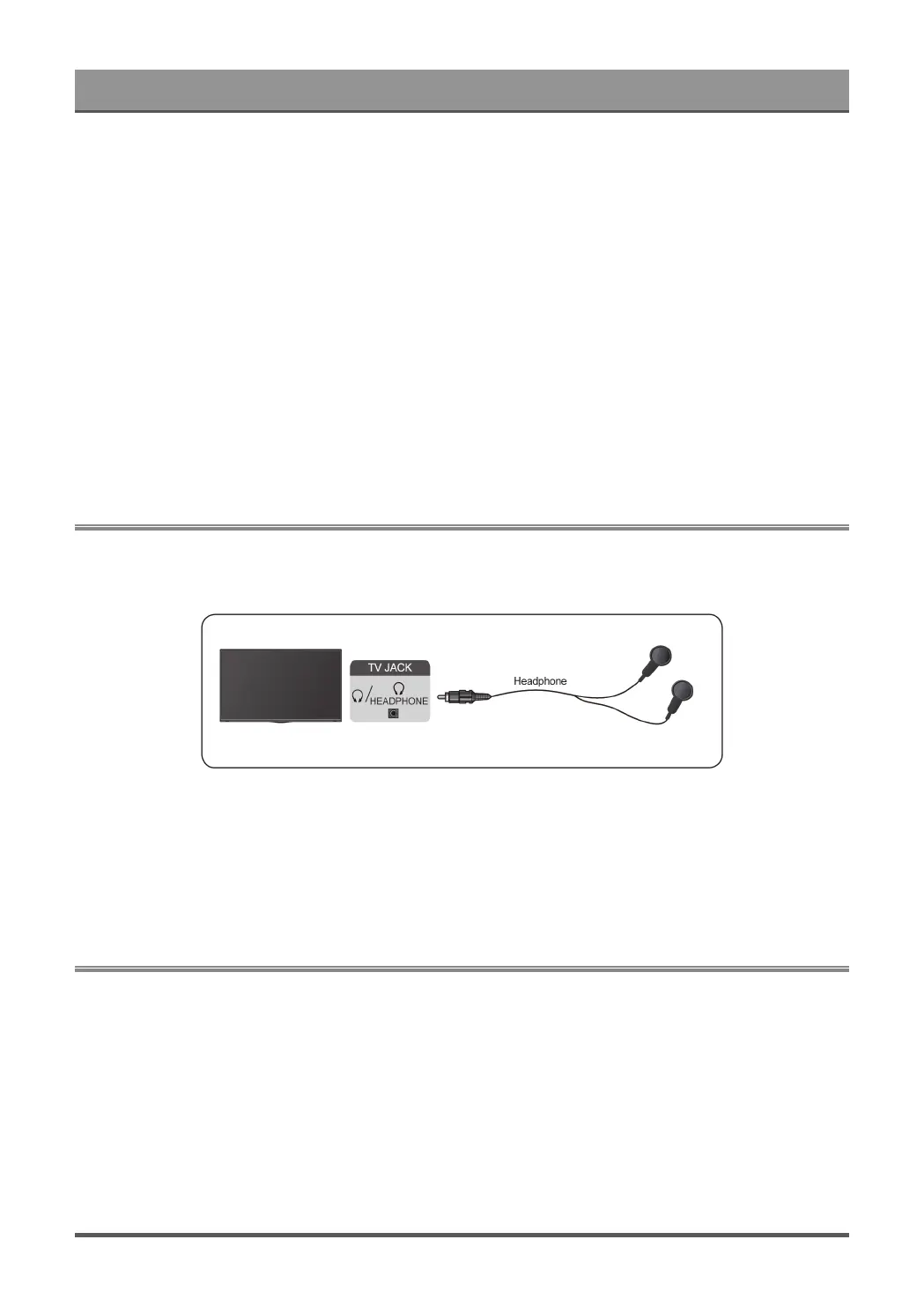
You can connect a pair of headphones (not provided) to the HEADPHONE port on your TV. While the
headphone is connected, the sound from the built-in speakers will be disabled.
Note:
• Headphone port may not be available in some models.
• Headphones with microphones are not supported.
• If Headphone with Speakers is selected in Settings > Display and sound > Audio Output >
Headphone Mode, the headphone and the TV will have sound output at the same time.
Connecting Speakers or Other Audio Receivers
To connect speakers or other audio receivers with an audio cable (not provided), see the illustration below.
Ensure the audio connected devices are switched on before switching on the TV.
When a digital audio system is connected to the DIGITAL AUDIO OUT port, decrease the TV volume, and use
your digital audio system to control the volume.
20



 To Next Page