Entertainment
You can enjoy a smooth viewing experience with external device connected to the TV when FreeSync is
turned on.
Note:
• This function may not be applicable in some models/countries/regions.
Enabling PC Sync
Press button to select Settings > Display and sound > Picture > Advanced Settings > PC Sync
You can enjoy a smooth viewing experience with external device connected to the TV when PC Sync is
turned on.
Note:
• This function may not be applicable in some models/countries/regions.
Media
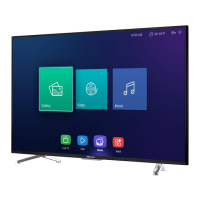
Media is a central location for you to view or listen to different types of content, such as photos, music and
movies. You can view media content through the following methods:
• A USB thumb drive or hard drive.
• Compatible mobile phone, tablet or other personal devices: you can stream movies, music and photos that
are stored on compatible personal device and play or view the content on your TV.
By default, there is Content Sharing displayed on the Media screen. If your mobile device is connected to the
TV, its name also appears on the Media screen.
For more information about Content Sharing, please refer to Benefits of Smart TV > Content Sharing in this
manual.
Enjoy Photos/Audio/Video Stored on a USB Device
You have some ways to enter Media:
•
Insert a USB device, a prompt message appears, press / to open it.
•
Press button to select MediaCenter from your Apps list on home page.
•
Press button to select Settings > Apps > MediaCenter > Open
Then select connected devices.
Select the content you want to play on the screen, like pictures, videos and music.
37


 To Next Page