Connecting to External Devices
1. Connect your mobile device to the wireless network.
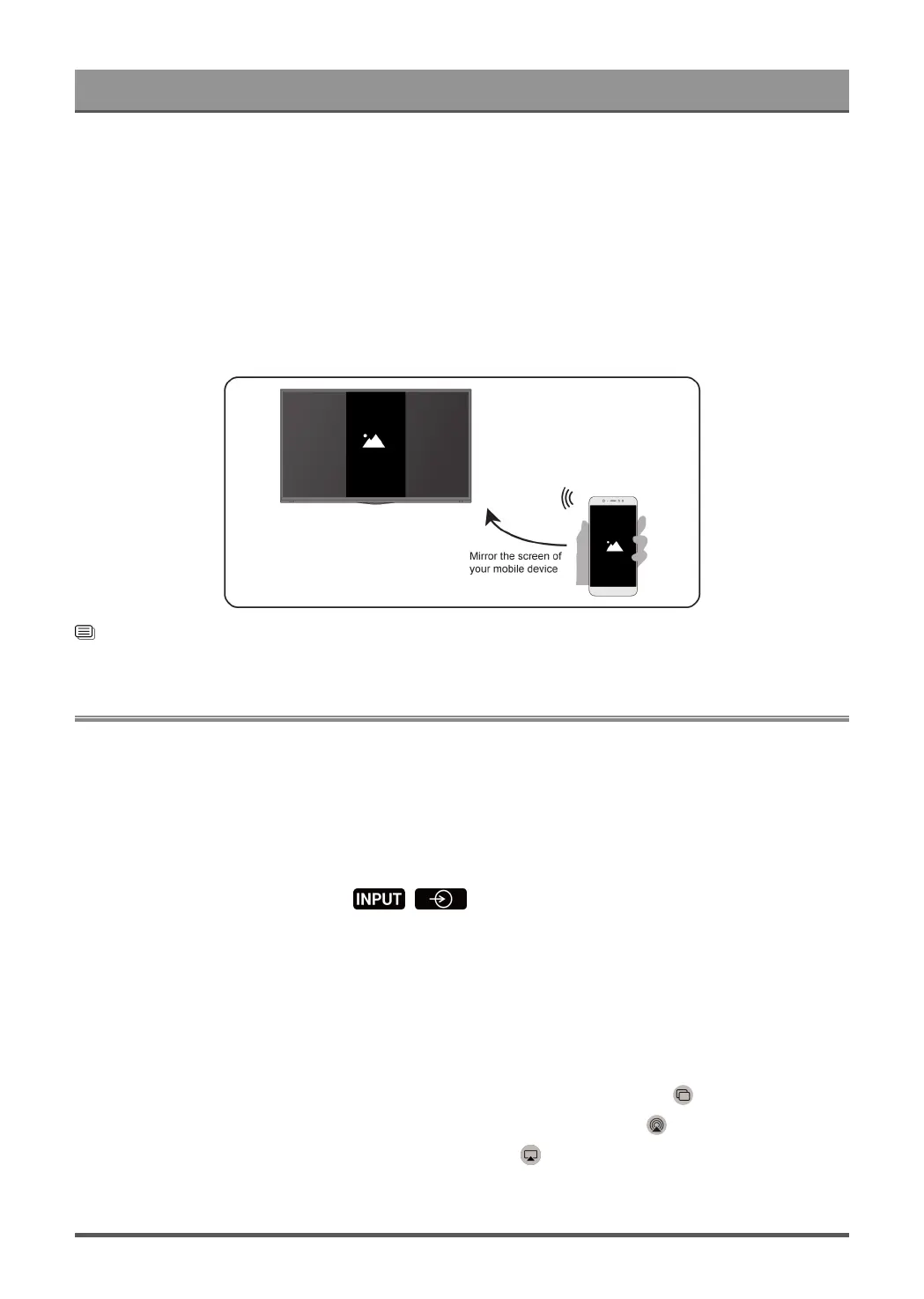
2. Turn on the casting function of your Android/Windows10 device. The function name and location will be
different according to your device. The feature may be called "Wireless display", "Smart view", "Wireless
projection", etc.
3. Find the TV name in the search list of your device and select it. Wait for the connection progress to
complete and your mobile device's screen will be mirrored on the TV.
Note:
• Some mobile devices may not support casting feature.
Related information
Connect to a Wireless Network on page 4
Using AirPlay and HomeKit
Note:
This function may not be applicable in some models/countries/regions.
Using Airplay
Use AirPlay to wirelessly share audio and video content from your iPhone, iPad, or Mac to your TV. Stream
music and videos, share your photos, or mirror exactly whatʼs on your deviceʼs screen.
AirPlay is a source in Inputs. Press the / button on your remote control to select the AirPlay,
then select AirPlay and HomeKit Settings. You can also find AirPlay and HomeKit settings in system settings
on your TV.
How to use AirPlay:
1. Make sure your Apple device is connected to the same network as your TV.
2.
Locate the AirPlay icon on supported media apps, or the Screen Mirroring icon in Control Center on your
Apple device. Depending on the content, these steps may vary:
•
To mirror your deviceʼs screen, open Control Center and tap Screen Mirroring .
•
To stream audio from supported music or podcast apps, tap AirPlay audio .
•
To stream video from supported apps, tap AirPlay video .
3. Select your TV from the list to begin using AirPlay.
Note:
19



 To Next Page