11.5 TapFly
It
is recommended to enlarge the map if you want to use TapFly.
- 9
9
1.
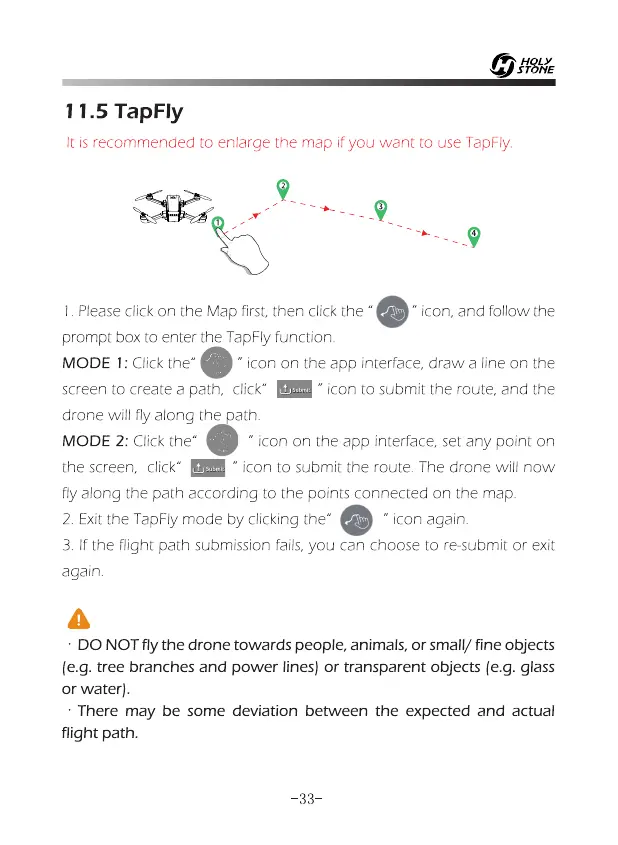
Please click on the Map first, then click the "
0
-
icon, and follow the
prompt box to enter the TapFly function.
MODE 1: Click the"
" icon on the app interface, draw a line on the
screen to create a path, click"
ism
icon to submit the route, and the
drone will fly along the path.
MODE 2: Click the"
" icon on the app interface, set any point on
the screen, click" En " icon to submit the route. The drone will now
fly along the path according to the points connected on the map.
2.
Exit the TapFly mode by clicking the"
" icon again.
3.
If the flight path submission fails, you can choose to re-submit or exit
again.
A
•
DO NOT fly the drone towards people, animals, or small/ fine objects
(e.g. tree branches and power lines) or transparent objects (e.g. glass
or water).
•
There may be some deviation between the expected and actual
flight path.
-33-



 To Next Page