storageoptions.com/support 15
2.6 Menu shortcuts
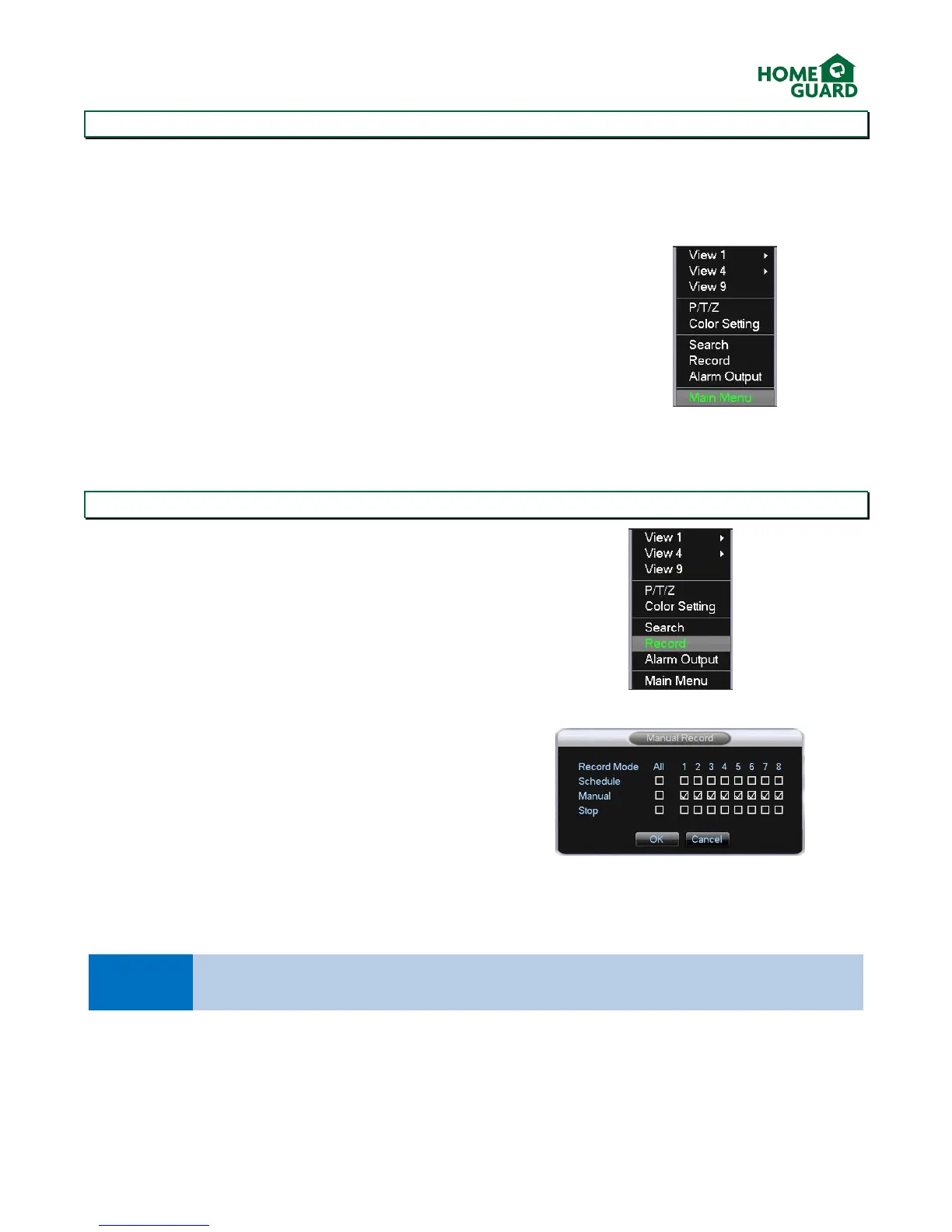
From the main viewing screen, a right click anywhere on the screen opens the Quick Menu. This gives you a number
of shortcuts to access the main features quickly:
View 1 displays one channel in full screen, you can choose which channel via the
drop down menu.
View 4 displays all 4 channels
P/T/Z opens the Pan Tilt Zoom menu*
Colour Setting allows you to adjust each channel’s image to compensate for
lighting differences
Search opens up the playback interface (more details below)
Record allows you to quickly switch between recording modes on each channel
(more details below)
Alarm Output allows you to modify the external alarm settings**
Main Menu opens up the main menu.
*Compatible PTZ camera required
**Compatible models only
2.7 Recording Options
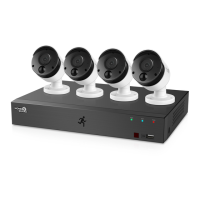
From the main viewing screen, right click to open the
quick menu, and select Record. This menu allows you
to switch between recording modes for each channel.
Schedule sets the DVR to record as per the schedule
defined in the main recording menu (see chapter
3.2.2)
Manual sets the DVR to record the selected channel,
irrespective of any other settings
Stop, as can be expected, stops any recording on the
selected channel.
All allows you to select all channels at once.


 To Next Page