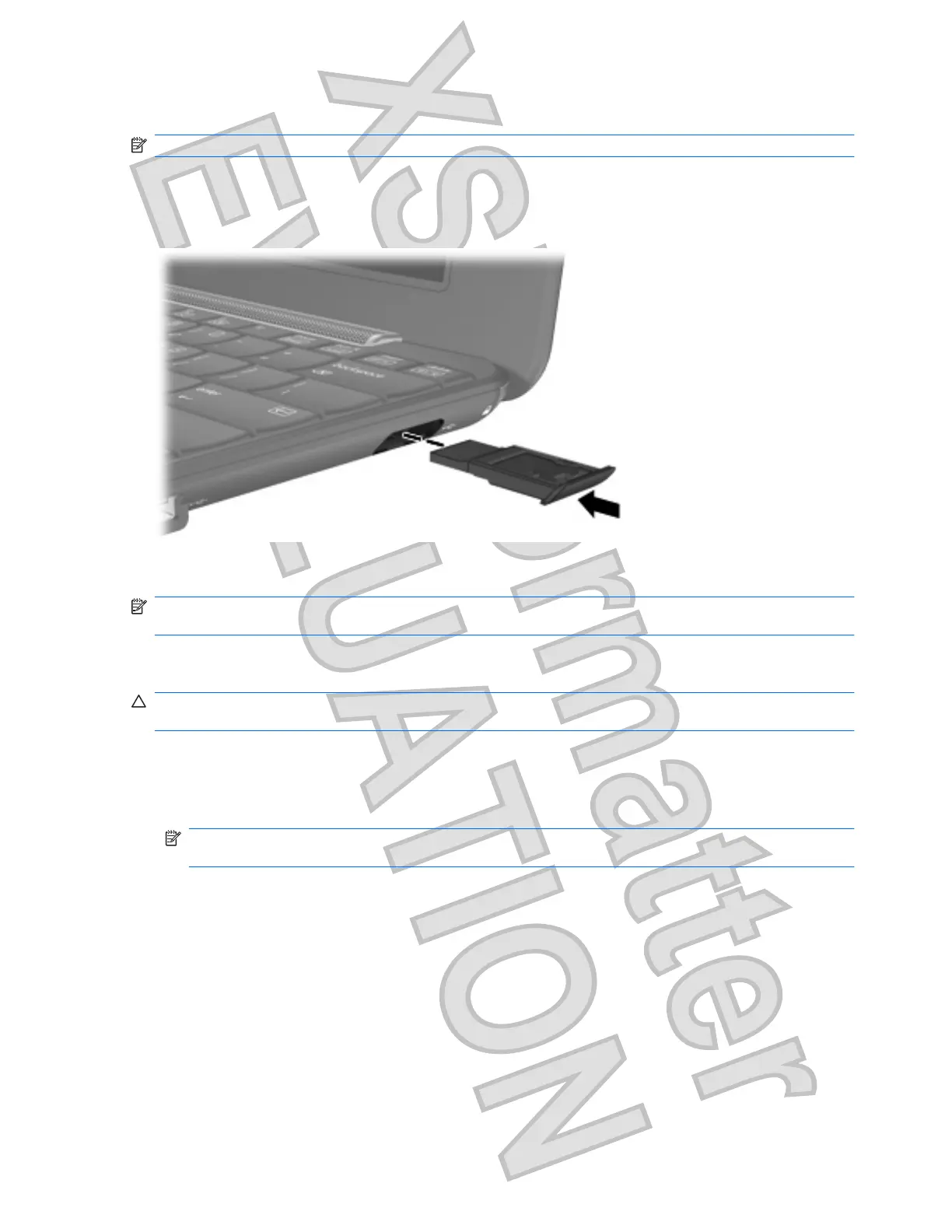
Using the USB SmartDrive (select models only)
NOTE: The USB SmartDrive can only be used with the HP USB Disk-On-Key (purchased separately).
Inserting the HP USB Disk-On-Key
Insert the HP USB Disk-On-Key into the USB SmartDrive, and then push in until firmly seated.
You will hear a sound when the device has been detected.
NOTE: When you connect a USB device, you may see a message in the notification area to let you
know that the device is recognized by the computer.
Stopping and removing the HP USB Disk-On-Key
CAUTION: To prevent loss of information or an unresponsive system, stop a USB device before
removing it.
To stop and remove the HP USB Disk-On-Key:
1. Double-click the Safely Remove Hardware icon in the notification area, at the far right of the
taskbar.
NOTE: To display the Safely Remove Hardware icon, click the Show Hidden Icons icon (< or
<<) in the notification area.
2. Click the name of the device in the list.
3. Click Stop, and then click OK.
4. Remove the HP USB Disk-On-Key from the USB SmartDrive.
48 Chapter 7 USB devices
Antenna House XSL Formatter (Evaluation) http://www.antennahouse.com/




 To Next Page