6. Updates
Updates to the CodeMax
®
are now performed using your PC and a
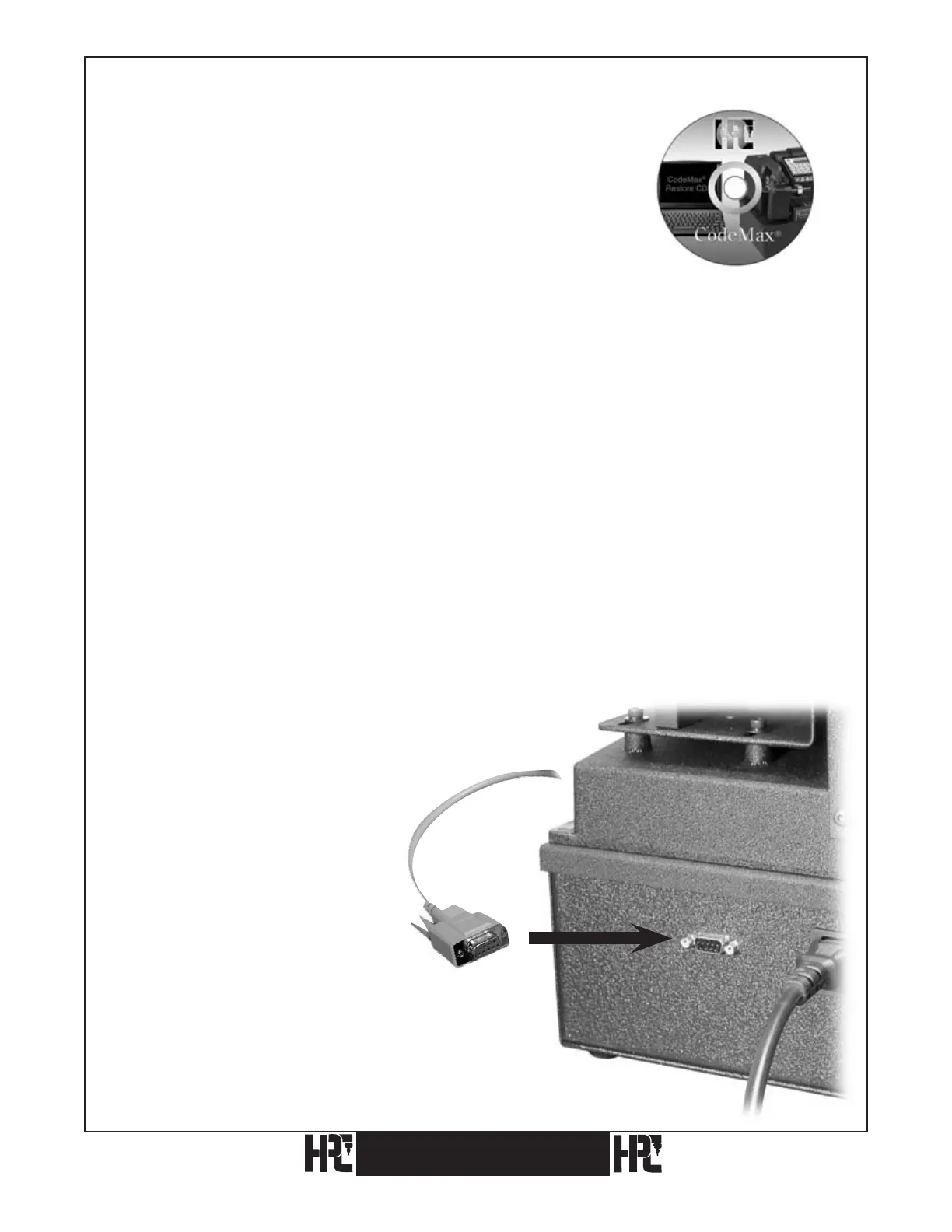
CD supplied by HPC, Inc. Connect the Serial Cable (included with
CodeMax
®
) to the correct Com Port on your PC and the RS422
port on the back of the CodeMax
®
. Follow the directions that come
with the CD to update your CodeMax
®
. It is no longer necessary to
open any part of the CodeMax
®
to perform updates.
60
CodeMax
®
CodeMax
®
1. Turn off your CodeMax
®
, leave off until
instructed below.
2. On your computer, open
My Computer
3. Open the
C: drive.
4. Open the Program Files folder.
5. Open the HPCSoft folder.
6. Open the CodeMax
®
Update folder
7. LEAVE THE CodeMax
®
TURNED OFF!
8. In HPC CodeMax
®
Update Program, click
Program.
9. Click
Start Update
10. When Status reads “Waiting for STX”, turn
ON CodeMax
®
.
11. CodeMax
®
operating instructions will
download.
If your CodeMax
®
fails to start after this procedure, contact HPC
Key Machine Services.
Program name: Update.exe
To start, double click the desktop shortcut
CodeMax
®
Update, or click Start, Program files, HPCSoft
™
and CodeMax
®
Update or, in My Computer, open your C: drive, open the Program Files folder, open the HPCSoft
™
folder, open the
CodeMax
®
Update folder, double click Update.exe (application).
Make sure your serial cable is connected to the back of the CodeMax
®
.
To update your CodeMax
®
, click on the Com Port to which CodeMax
®
is connected and click Start Update.
Status will display progress: Waiting for Load Command, Waiting for STX, Sending Data (514 bytes, 1, 2, etc.), Waiting
for ACK, Send Complete. During the update process, CodeMax
®
screen will display “Starting Upgrade **Please Wait**”.
CodeMax
®
will beep when the update is completed.
If the new update information does not appear in CodeMax
®
, repeat the update process. Be sure you are using the latest
files.
If CodeMax
®
does not beep on completion of the update process, or if the update process is interrupted, or if the CodeMax
®
screen remains dark after Send Complete, use the following correction procedure:


 To Next Page