THT45 - THT45W - THT46
5.1.2 Image zoom
The instrument is provided with an electronic digital zooming function of the IR image and
of the framed visual image. To use this function, proceed as follows:
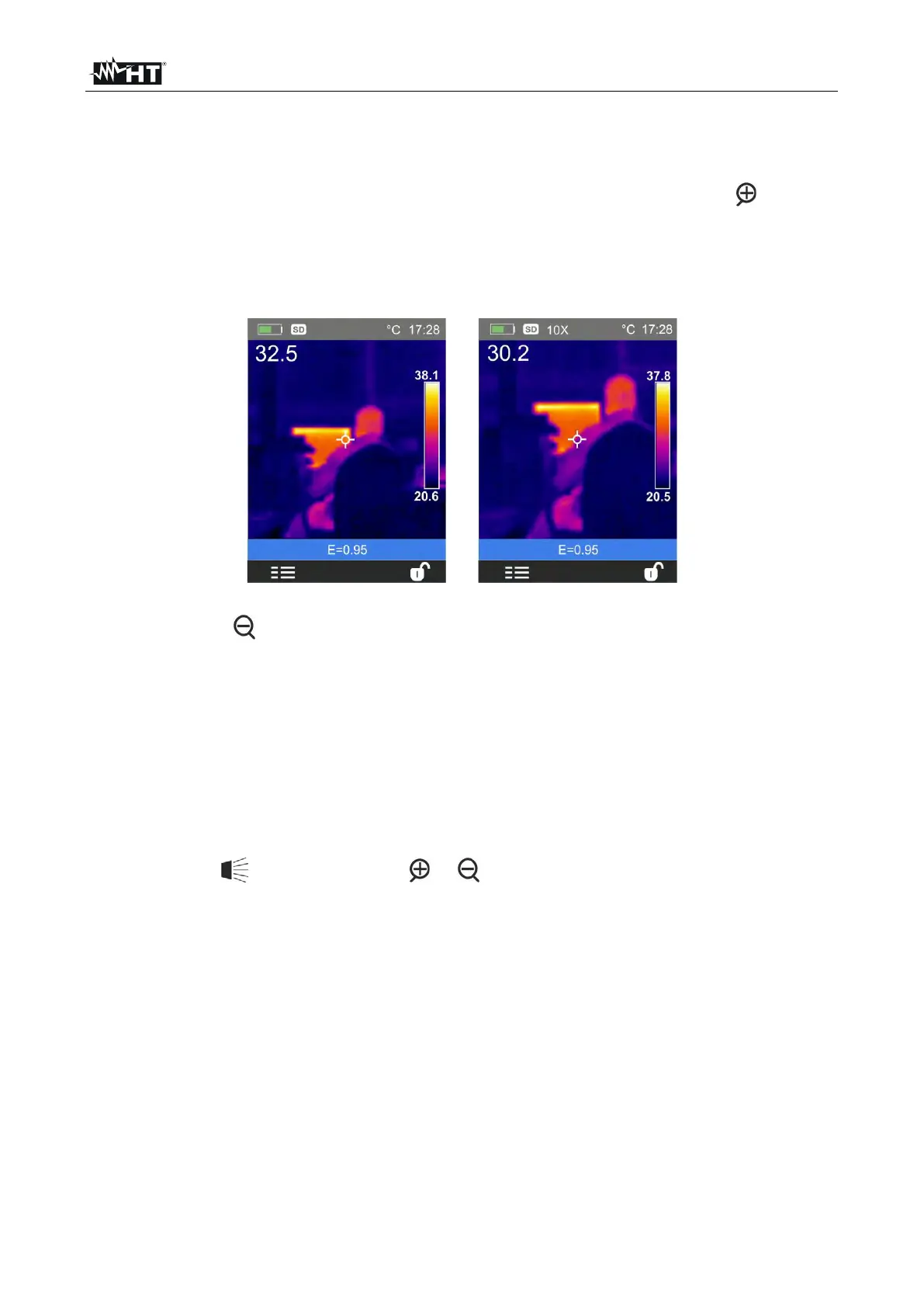
1. Frame the object to be tested (see Fig. 6 – Left side) and press the key as many
times as you want to zoom the image. Each pressing increases the size of the image
by 10% with respect to the original. The instrument show the zoom value on the top
side of the display (see Fig. 6 – Right side relevant to x10 zoom). Possible options are:
1x 32x
Fig. 6: Setting image zoom
2. Press the key to zoom out until you go back to the original image.
5.1.3 Adjusting the distance of the object in Fusion screens
In “Fusion” display mode (see § 5.2.4), due to the different position of the lens and of the
built-in photo camera, when the object is close to the lens, the visible image tends to
become bigger, while the IR image tends to reduce. When the object is more than 2m far
from the lens, this effect tends to disappear. The instrument allows setting the distance of
the object in order to compensate the effect at distances shorter than 2m. Proceed as
follows:
1. Select the item “Alignment” within the Setting menu (see § 5.2.1).
2. Use the key and then the keys or to set the value of the distance of the lens
from the object. The following values are available: 0.5m, 1m, 1.5m and >2m
3. Press the key “Select” to confirm or “Close” to exit without saving.


 To Next Page