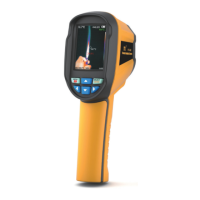
1.“Image registration” submenu
1.1. Description of image overlapping
Introduction to the menu
Press the left of “ MENU ” key and the menu bar appears. They are “Image
registration”, “Images”,“Videos”, “Color palette”, “Emissivity” and “Settings”
submenus.
Image overlapping makes it easier for users to understand the infrared
images by using aligned visible images and infrared images. The use
of image overlapping can capture the visible image of every infrared
image so as to display the temperature distribution in the target region
correctly and share with other people more effectively.
1.2. Application of Image overlapping
Press the “ MENU ” button to enter the main menu, and select “ ”
(Image registration) in the main menu.
Press the “ SELECT ” button to enter the image overlap adjustment
mode.Press the navigation keys (up, down, left and right buttons) to
perform the visible image shift operation.
Press the “ ENTER ” button to exit the image blending mode (Note: If
there is no operation for more than 6 seconds, the image blending mode
will be automatically exited).
Record video
Long press the image capture button, the screen will prompt
“record video?”, if you select “Yes” at this time, please press the
“ MENU ” button or short press the image capture button to start
recording. Press the “ ENTER ” key or long press the image
capture key to end the recording. If you choose “No”, please press
the “ SELECT ” button to confirm not to record video.
Image output
The saved images through capture may be checked and output
by connecting with a computer through Micro USB.
Read images
Open the USB protective cover as shown in . Use USB line to
connect the USB port and then computer to read the images or
save it into computers.images or save it into computers.
The supported operating system through verification includes:
winxp, win7, win 8, win10, Apple system.
It is suggested to use the attached USB line or USB line with
higher quality.
Note:
When connecting with a computer, pull off the data line after
selecting “pop out device safely” to avoid causing file system
damage and other problems. If “unable to save” and other
problems occur, you may find the hard disc in the computer and
fix it.
3
www.xintest.com.cn
21
www.xintest.com.cn
22


 To Next Page