2. Introduction to “images” sub-menu
2.1. View image
2.2. Delete images
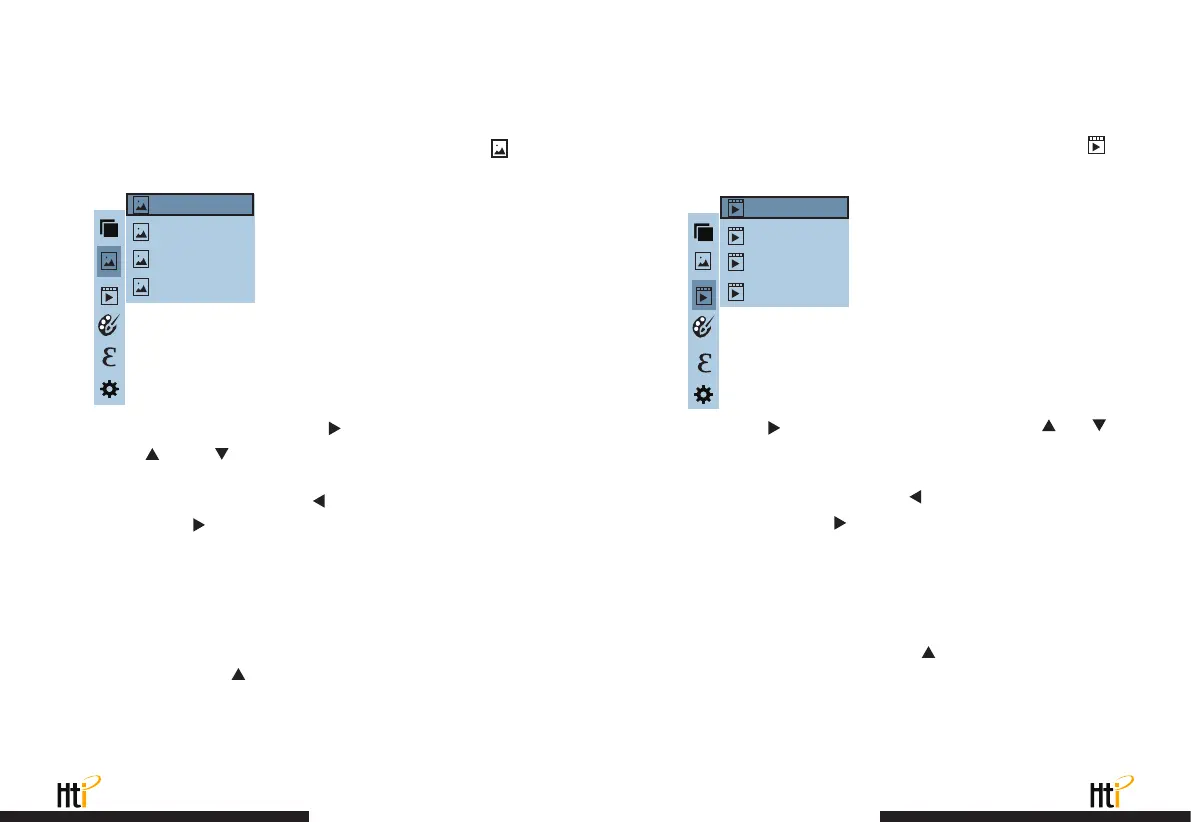
As shown in the figure, Then press
“ ”
key to enter image list.
Press
“ ”
or
“ ”
key in navigation to select the image. Then
press “ SELECT ” key to view image.
When viewing the images, press
“ ”
key to view the precious
image, Press
“ ”
to view the next image.
Press “ ENTER ” key to return. Press “ MENU ” key to exit from the
menu.
When viewing the images, the screen will show the prompt of “Delete
photo” by pressing
“ ”
key. If “Yes” is selected at the moment,
press “ MENU ” key to determine to delete the image. If “No” is
selected, press “ SELECT ” key to determine not to delete the image.
Press the “ MENU ” button to enter the main menu, and select “ ”
(images) in the main menu.
www.xintest.com.cn
23
www.xintest.com.cn
24
3."Video" sub-menu
3.1. View video
3.2. Delete video
Press the
“ ”
key to enter the video list, press the
“ ” “ ”
keys in the navigation keys to select a video, and then press the
“ SELECT ” key to view the video.
When viewing a video, press the
“ ”
button to view the previous
video, and press the
“ ”
button to view the next video. When
playing a video, press the “SELECT” button to pause playback, and
press the “SELECT” button again to resume playback.
When viewing the video, press the
“ ”
button, and the prompt
“
Delete video?
”
will appear on the screen. If you want to select “Yes” at
this time, please press the “ MENU ” key to confirm the deletion of the
video. If you want to choose “No”, please press the “ SELECT ” button
to confirm not to delete the video
Press the “ MENU ” button to enter the main menu, and select “ ”
(videos) in the main menu.
171229-105030
171229-105031
171229-105032
171229-105033
171229-105030
171229-105031
171229-105032
171229-105033


 To Next Page