4 Direct Navigation (Go To Key)
4.1 Go to Page
The Go to Page function allows you to go directly to a desired page.
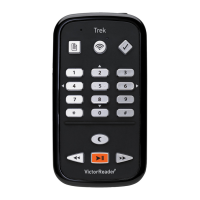
Press the Go to Page key above key 1. Enter a page number. Press Confirm to go to the selected
Page, Trek will confirm the entered Page number. Or press the Play/Stop key to have Trek start
playback from the chosen page.
To cancel, press the Cancel (Star) key.
4.2 Go to Heading
If you press the Go to Page key twice it allows you to enter a heading number relative to the start
of a DAISY or NISO book. This is useful for books that do not have page markers. For example,
you could jump directly to a chapter by going to its heading number rather than advancing chapter
by chapter.
End your heading number entry with Confirm to move to that heading or end with Play to move
and start playback.
4.3 Go to Time
The Trek has a Go To Time feature for DAISY or NISO recorded books, Other Books, Saved
Podcasts, and Audio Notes bookshelves. While in these bookshelves press the Go To key above
key 1 until you hear, “Go To Time”. Then enter a time in hours and minutes relative to the start of
the book or audio note. The last 2 digits of the entry represent minutes and the other digits represent
hours. The minutes can range from 00 to 99. For example:
• Enter 1 to position 1 minute from the start of the book or note
• Enter 12 to position 12 minutes from the start
• Enter 123 or 83 for 1 hour 23 minutes
• Enter 1200 for 12 hours and 0 minutes
4.4 Go To Percent
When reading files in the Text Bookshelf or audio files in the Other Books or Saved Podcast
bookshelves, the Go to Page key will become a Go To Percent key for navigating to relative
positions x% from the start of the file. Press Go To Percent and then enter a percentage from 0 to
100. Press Confirm to position to that relative position in the file or press Play to position and start
playback at that relative position. For example, entering 0 will position to the start of the file, entering
50 will position to the middle of the file, and entering any number greater than 99 will position to the
end of the file. For text files, Trek moves to the beginning of the paragraph that contains the position
of the specified percentage.
4.5 Go to Beginning and End of Book
To quickly reach the beginning or end of a book you can press the Go to key above key 1 followed
by Rewind or Play to go to the Beginning of the book, or press the Go To key followed by Fast
Forward to jump to the end of the book.


 To Next Page