183
CUSTOMIZE THE DOWN IMAGING VIEW
T
he settings in this section are optional. You can use the default settings for the view, or you can customize it with your preferences.
S
ee Views for more information.
OPEN THE DOWN IMAGING PREFERENCES MENU
The Preferences menu allows you to set the palette, zoom mode, and bottom line. For more information about view preferences,
see Views.
1. With a Down Imaging View displayed on-screen, tap Sonar (DI) in the status bar, or press the MENU key once.
2. Select Sonar Options.
3. Select Preferences.
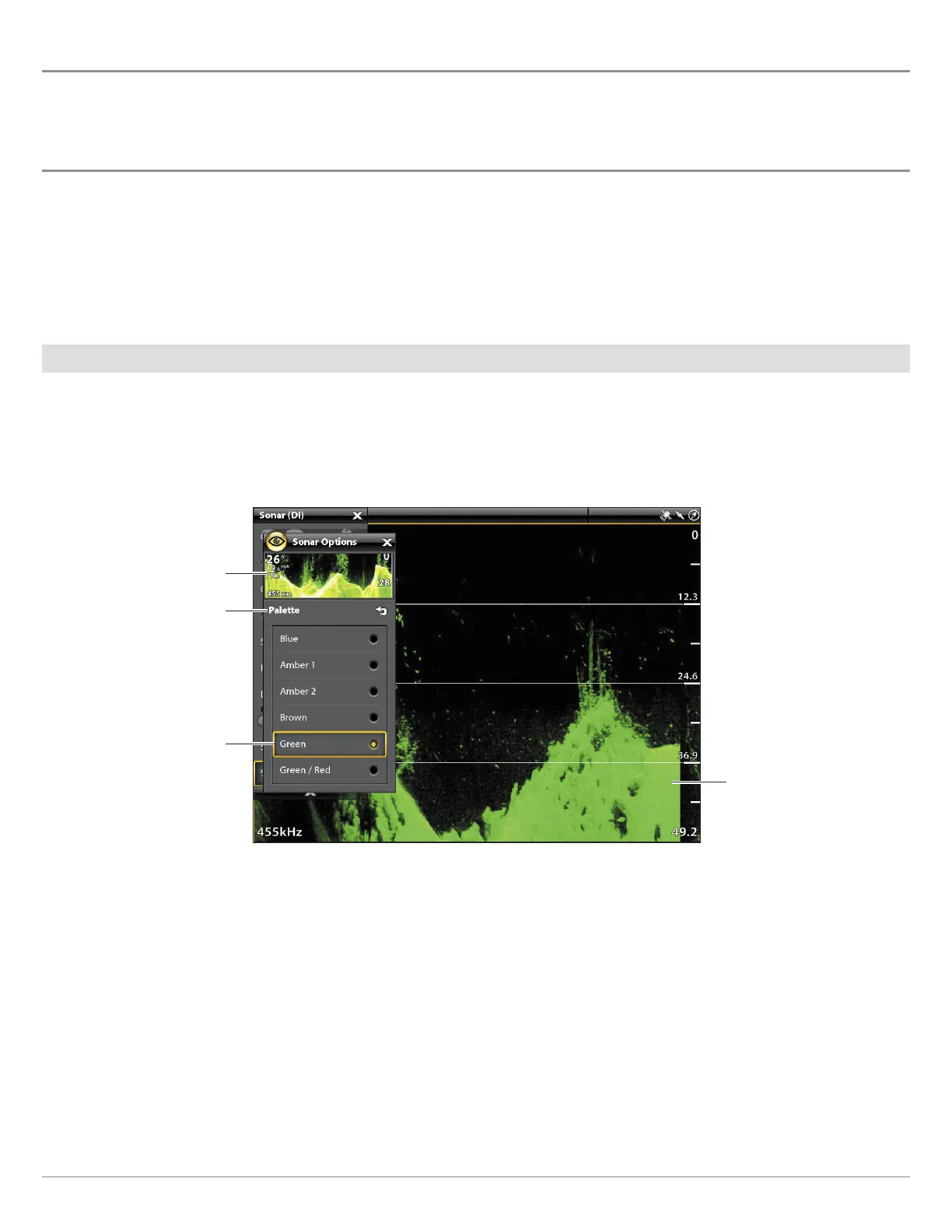
Change the Palette
The Palette menu changes the colors used to display sonar returns on the view.
1. From the Preferences menu, select Palette.
2. Select a color palette.
Down Imaging View with a Customized Palette
preview window
menu
selection
palette set to green
Down Imaging


 To Next Page
 Loading...