Connecting to Your Network
When your controller is first powered on, it will run a short wizard to connect your controller
to your wireless router. If you’re not using the initial startup wizard then go to the section
Viewing Wireless Settings to change your wireless settings.
WIFI Checklist:
Bandwidth 2.4 GHz only. Not compatible with 5 GHz
Router Channel Set between 1-11
Security Type WPA or WPA 2
Guest Networks/Networks with portal page login Not compatible
Mac Address (If Needed)
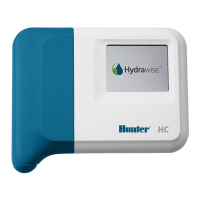
HC - Enter 001e followed by serial
number (e.g., 001e05fb90ce)
HCC/HPC/PROHC - Enter f8f0 followed
by serial number (e.g., f8f005fb90ce)
NOTE: The network must not contain enterprise access points that have been configured to require
certificates or other forms of enterprise authentication.
Using The Controller Wizard
1. Select your wireless network from the list shown on the controller display and press the
Confirm button on screen. NOTE: If your network is not listed then check that the unit
is within wireless range.
2. Enter your wireless password and press the OK button on keyboard. NOTE: Make
sure you press the OK button after you’ve entered your password. Pressing the Home
or Back buttons will not save your changes.
When connecting to your wireless, the WiFi Icon at the bottom right of the controller screen
will flash. Connection takes about 30 seconds and when successfully connected the WiFi
Icon will stop flashing and stay on.





 To Next Page