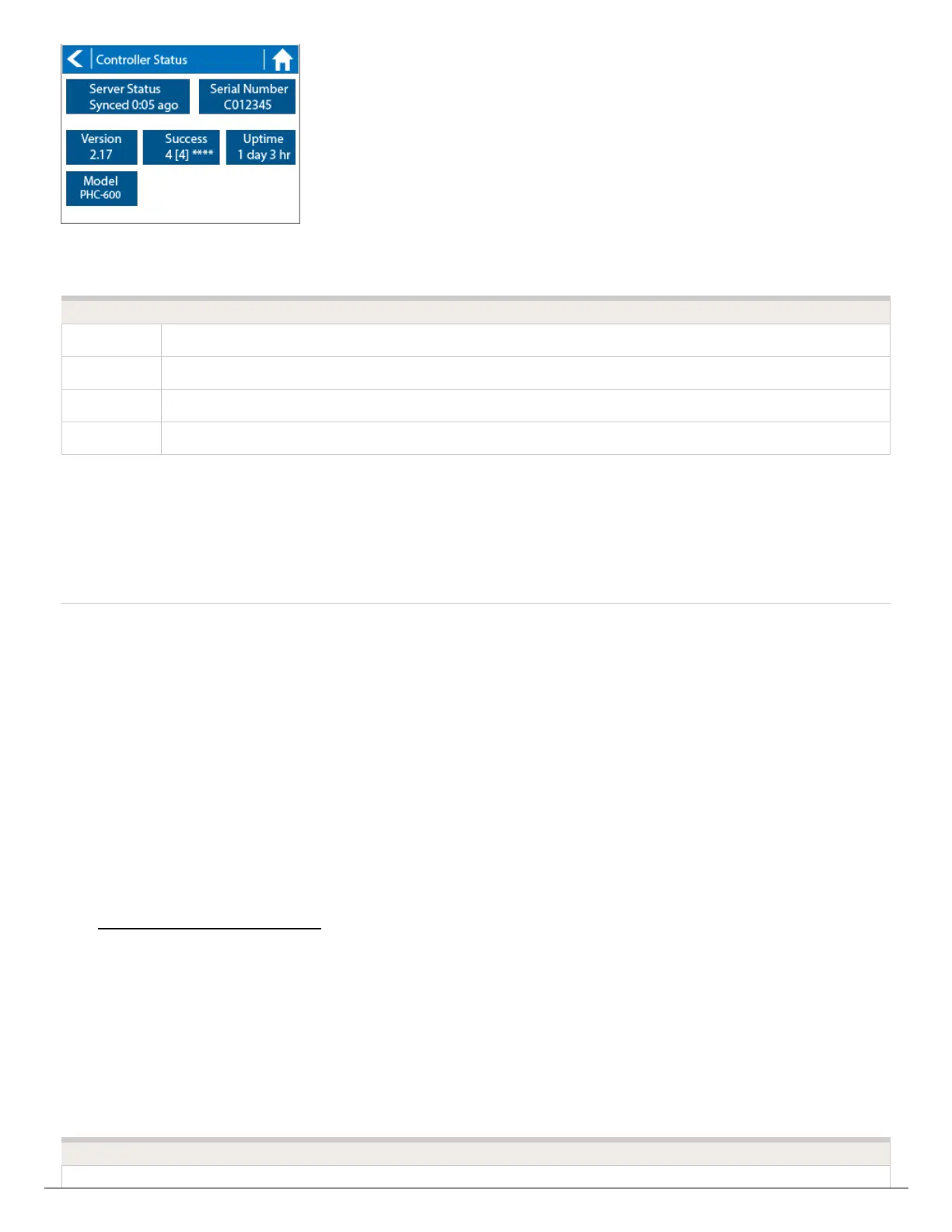
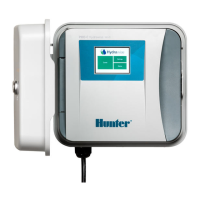
From this screen, you can find more information regarding your controller, including:
Serial This is the serial number of your controller.
Version This is the software version of your controller
Success The rate of success your controller syncs with your Dashboard.
Uptime How long your controller has been on since it last reset or was powered on.
Model This is the model number of your controller
Important: If you have a low success rate for syncing, there may be a signal issue
between your controller and your Wi-Fi network.
Message - "All Good" controller
status "No Internet."
1. Try connecting another device to the same wireless router and see if you
can successfully browse to the Hydrawise website at
http://hydrawise.com [29].
2. Navigate to the Network Settings page on the controller and press the
Test Network button on the controller. This will perform a ping test to
your local wireless modem, your DNS server, and the Hydrawise server.
Make sure these tests are successful. If the test fails at the Hydrawise
website, there is a DNS issue or a router issue.




 To Next Page