CardioPet* App for Apple* iPad* 36
Working with ECGs in the CardioPet app
Streaming and recording an ECG
1. Open the CardioPet app on the iPad.
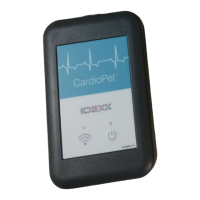
2. Turn on the CardioPet device.
When the wireless communication light turns on, the ECG starts streaming automatically in the
CardioPet app. (The iPad Bluetooth setting must be On.)
Note: The first time an iPad is used with the CardioPet device, the device must be paired with Bluetooth
technology on the iPad.
3. If prompted, select the patient’s species.
4. Prepare the patient. See “Preparing the Patient” for additional details.
5. When the ECG tracing is diagnostic, tap Start Recording at the bottom right of the screen. See
“Diagnostic ECG checklist” for more information.
TIP: You can also lightly depress the power button on the CardioPet device to start recording.
The livestream and recording stop automatically once the app records the ECG for 30 or 60 seconds
(depending on your setting).
6. To turn off the CardioPet device, press and hold the power button for about 5 seconds; the device will
also turn off automatically after 5 minutes of inactivity.
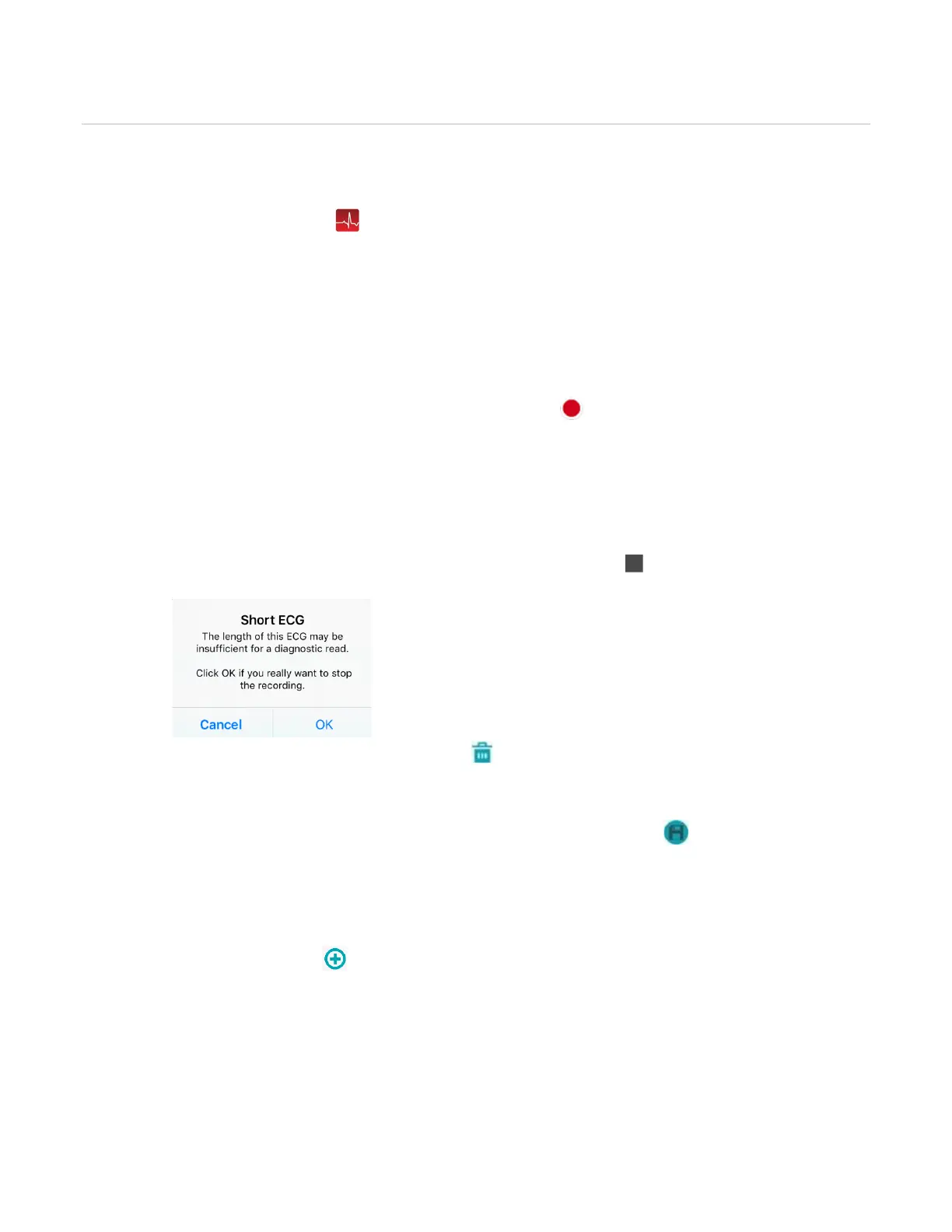
Note: The ECG must be at least 20 seconds long. If the Recording icon is tapped while recording is
in progress, you may receive a Short ECG warning:
TIP: To discard a recorded ECG, tap Delete in the top right corner of the screen.
Selecting the patient and saving the ECG
1. At the bottom right side of the CardioPet app, tap Select Patient & Save . The Local Patients
window opens.
2. Assign the ECG to an existing patient or to a new patient as follows:
• Existing patient: Tap the patient name in the Local Patients list, and tap Save in the Confirm
Patient window.
• New patient: Tap at the top right of the Local Patients window and complete all fields.
TIP: Entering the date of birth in the Birthday field calculates the patient age and vice versa.
3. (Optional) To record an additional ECG, tap Live ECG in the upper left corner of the screen.


 To Next Page
 Loading...