34
ifm Device Manual IO-Link Master with Modbus interface CabinetLine 8 Ports IP 20 (AL1940) 05 / 2018
Configuration LR DEVICE
>
8.1.13 Configure IO-Link devices
11033
To configure the IO-Link devices connected to the device with the LR DEVICE parameter setting
software:
Requirements:
> IO-Link master is correctly installed and connected to the LR DEVICE parameter setting software.
> The IO-Link device is correctly connected to the AL1940.
> Operating mode of the IO-Link port is "IO-Link" (→ IO-Link ports: Configure operating mode (→ p. 30)).
> IoT has write access rights to the IO-Link master (→ IoT: Configure access rights (→ p. 25)).
1 Select IO-Link master
► Start LR DEVICE.
► Update IODD file library
OR:
Import IODD file of the IO-Link device manually.
► Scan network for devices.
> LR DEVICE detects IO-Link master.
2 Add IO-Link device
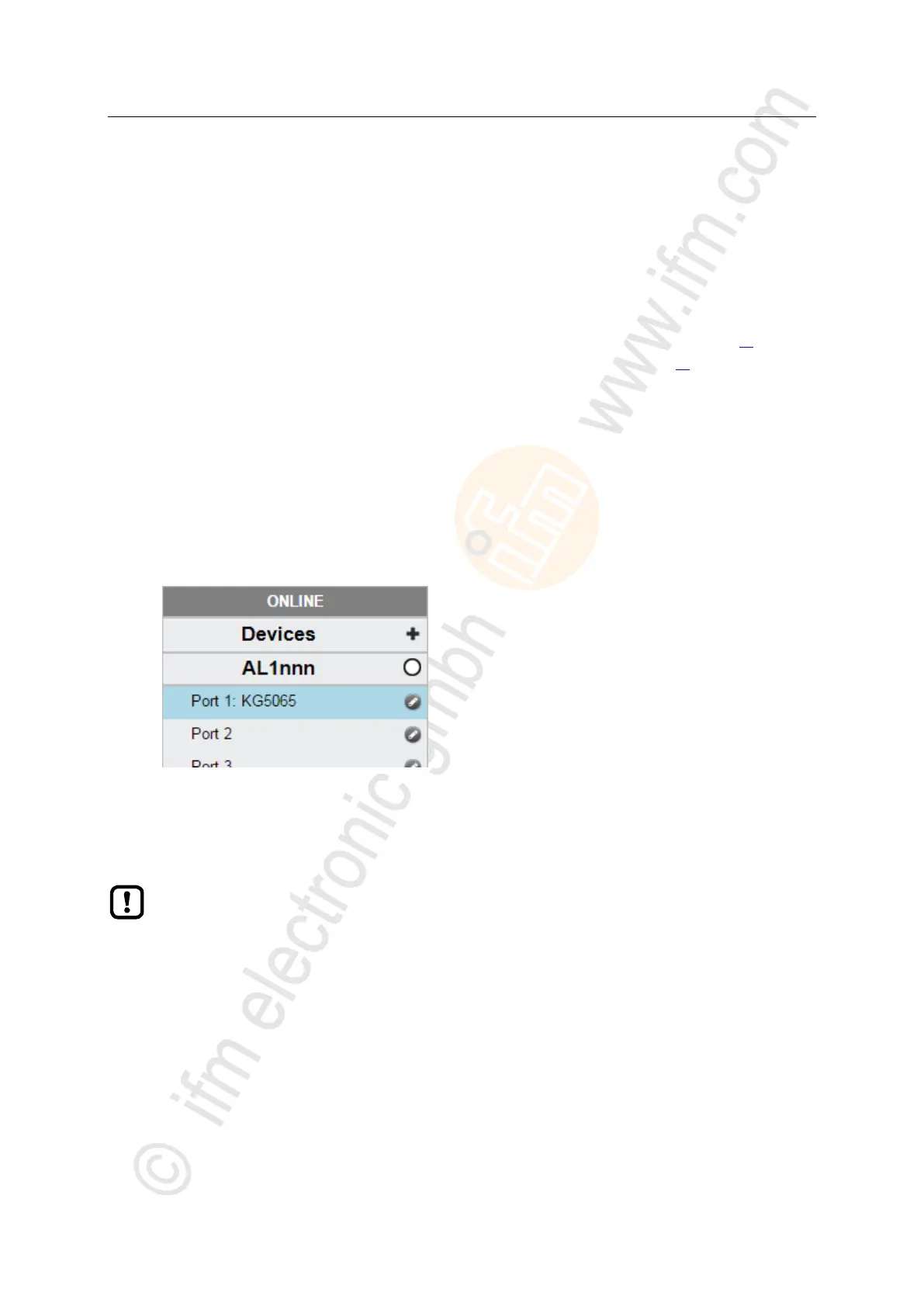
► Under [ONLINE]: Click on the required IO-Link master.
> LR DEVICE automatically detects the IO-Link devices connected to the IO-Link master (e.g. ifm sensor KG5065).
3 Configure IO-Link device
► Mouse click on the port to which the IO-Link device is connected.
> LR DEVICE reads and shows the current parameter values of the IO-Link device.
► Configure IO-Link device.
Information about the available parameters of the IO-Link device: → IO Device Description
(IODD) of the IO-Link device
► Save the changed configuration on the IO-Link device.


 To Next Page