50
ifm Device Manual IO-Link Master with Modbus interface CabinetLine 8 Ports IP 20 (AL1940) 05 / 2018
Configuration Modbus
>
Example: Integrate IO-Link master in a CODESYS project
9612
Familiarise yourself with the following CODESYS functions!
Modbus master:
→ Online help > Fieldbus support >Modbus configurator >Modbus master
Modbus slave device:
→ Online help > Fieldbus support > Modbus configurator > Modbus slave device
Task: Integrate IO-Link master in a CODESYS project
Hardware:
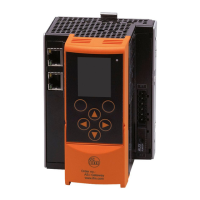
AC14 DL as Modbus-TCP master
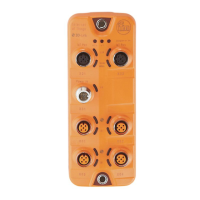
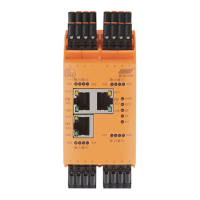
AL1940 as Modbus-TCP slave
Solution:
Preparation:
► Create CODESYS project with AC14 DL.
1 Create Modbus-TCP master
► In the device tree: Right-click on [X8] node
> Context menu appears.
► In the context menu: Select [Add Device...].
> Dialogue window appears.
► Select the following settings:
1. [Vendor]: Select [ifm electronic].
2. [Device]: Select [Modbus_TCP_Master].
3. [Name]: Enter a unique name.
► Click on [Add Device].
> Device tree shows Modbus-TCP master as sub-node of the interface X8.
2 Create Modbus-TCP slave (AL1940)
► In the device tree: Right-click on the node of the added Modbus-TCP master
► In the context menu: Select [Add Device...].
> Dialogue window appears.
► Select the following settings:
1. [Vendor]: Select [ifm electronic].
2. [Device]: Select [Modbus_TCP_Slave].
3. [Name]: Enter a unique name
► Click on [Add Device].
> Device tree shows AL1940 as sub-node of the Modbus-TCP master.
3 Configure Modbus-TCP slave
► In the following tabs, set the parameters as required:
1. [General]
2. [ModbusTCPSlave Parameters]


 To Next Page