I-Control manual page 34
I-Control software update
The I-Control software can easily be updated if necessary. To update, a micro Sd memory card is required. The Sd
card must be FAT16 or FAT32 formatted. The capacity of the Sd card can be up to 32GB.
Updating the I-Control is as follows:
1 Using your PC, copy the update file to the micro Sd
card. The file should be placed in the root directory and
not in a folder on the Sd card.
2 Make sure there is no backup file from any previous
backup on the Sd card. Delete any previous backup
files, which are those with .BCK and .USED extensions.
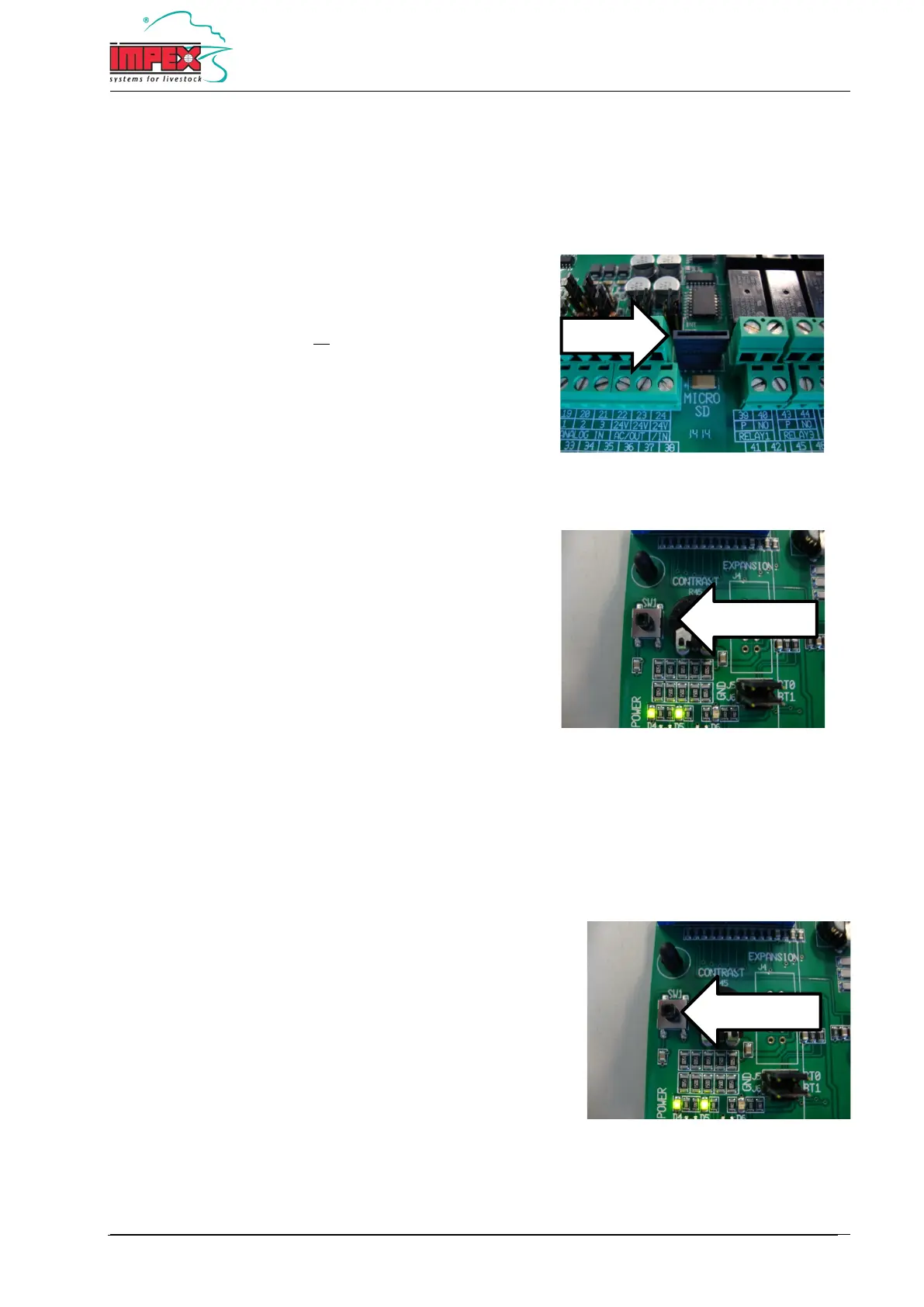
3 Insert the Sd card into the connector. See upper
picture.
4 Press the SW1 button located on the bottom printboard
of the I-Control. See lower picture.
5 The I-control writes all the set functions on the Sd card,
which is indicated by the flashing ADDR-led.
6 Thereafter, the I-control starts the boot program and
the update is performed. The display will show this
process.
7 Once the update is completed, the user program
automatically starts.
8 Thereafter, the functions saved on the Sd card are
replaced in the relevant functions. Any "new" features
in the new software will be set to the default.
9 The I-control is updated and ready for use.
Restoring factory settings
To reset the settings to the factory settings, proceed as follows:
1 Turn off the power.
2 Press the SW1 button on the bottom printboard and keep it
pressed while the power is turned on.
3 Keep this button pressed for at least 30 seconds until the
run-indicator blinks at one second intervals.
4 The factory settings are now restored.


 To Next Page