19
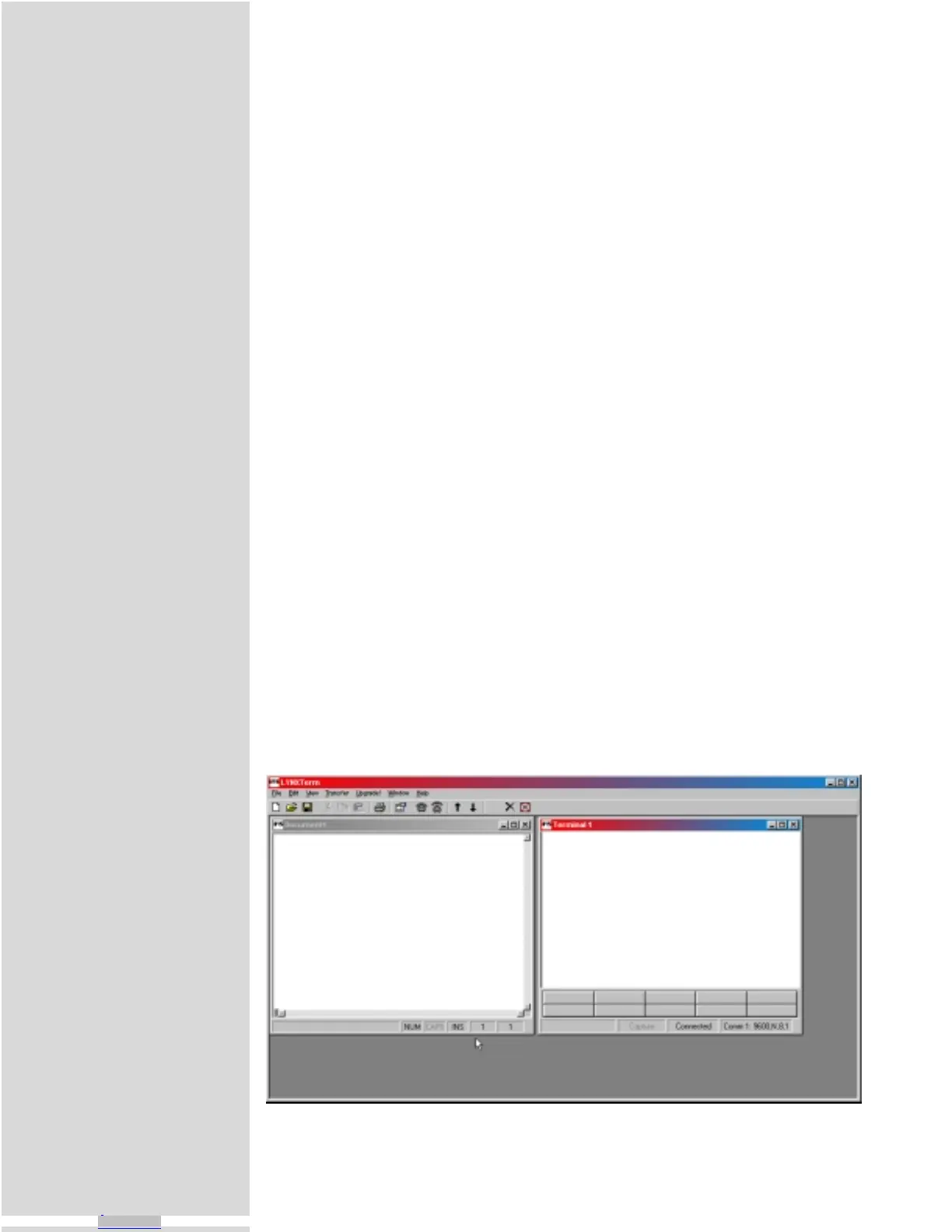
1) To open the LYNX Terminal select Start > Programs >
Lynx_Terminal > Lynx_Terminal.
2) Click the File Menu Item “Edit>Preferences”.
3) Click the “Comm Settings” tab.
4) Select the Communications Port that you will be using with
your MicroLYNX.
5) The BAUD rate is already set to the MicroLYNX default.
Do not change this setting until you have established com-
munications with the MicroLYNX System.
6) The “Window Size” settings are strictly optional. You may
set these to whatever size is comfortable to you.
7) Click “OK”. The settings will be automatically saved upon a
normal shutdown.
8) Apply power to the MicroLYNX System. The following
sign-on message should appear in the terminal window:
Program Copyright © 1996-2000 by:
Intelligent Motion Systems, Inc.
Marlborough, CT 06447
VER = 1.300 SER =XXXXXXXXX
If you can see this sign-on message then you are up and running! If the sign-on
banner does not appear, try using a software reset: hold down the “Ctrl” key
and press “C” (^C). If the sign-on banner still doesn’t appear then there may be
a problem with either the hardware or software configuration of the
MicroLYNX or Host PC. See Appendix B: Troubleshooting, for more informa-
tion.
Figure 5.1: LYNX Terminal Main Window
Downloaded from Arrow.com.Downloaded from Arrow.com.Downloaded from Arrow.com.Downloaded from Arrow.com.Downloaded from Arrow.com.Downloaded from Arrow.com.Downloaded from Arrow.com.Downloaded from Arrow.com.Downloaded from Arrow.com.Downloaded from Arrow.com.Downloaded from Arrow.com.Downloaded from Arrow.com.Downloaded from Arrow.com.Downloaded from Arrow.com.Downloaded from Arrow.com.Downloaded from Arrow.com.Downloaded from Arrow.com.Downloaded from Arrow.com.Downloaded from Arrow.com.Downloaded from Arrow.com.Downloaded from Arrow.com.



 To Next Page