21
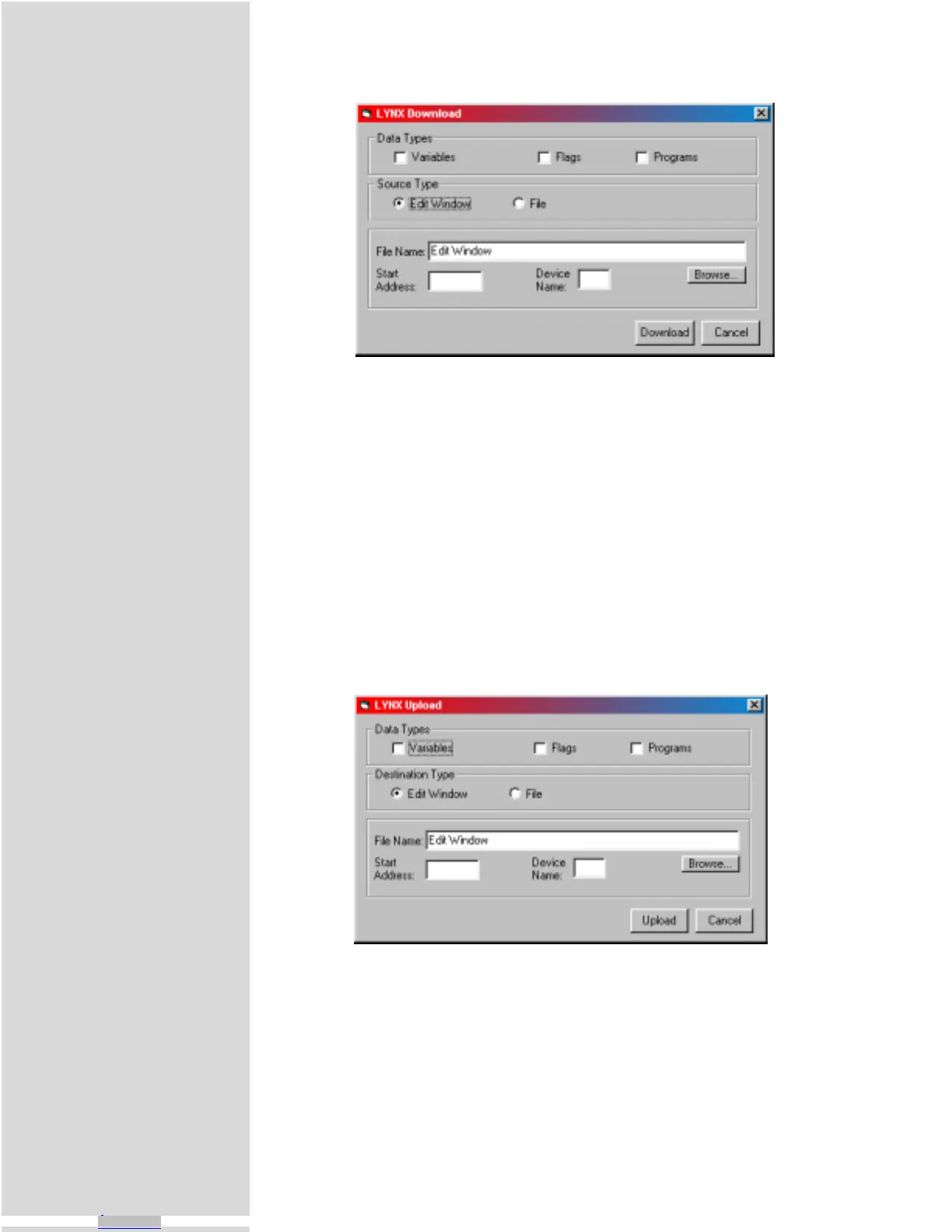
Figure 5.3: LYNX Terminal Download Dialog
Figure 5.4: LYNX Terminal Upload Dialog
“Source Type > File” on the dialog and typing in a drive location:\file name in the
“File Name” box on the dialog, or browsing to the file location.
Uploading a Program From the MicroLYNX
Programs may also be uploaded from the MicroLYNX in two ways:
1] Directly to the text editor window of the LYNX Terminal.
2] To a text file located on a hard drive or removeable disk.
To upload a program to the text editor window click the menu item “
Transfer >
Upload”. The dialog shown in Figure 5.4 will open. Select the “Destination Type
> Edit Window” option, click “Upload. The program will transfer from the
MicroLYNX.
Programs may be uploaded from the MicroLYNX to a text file by selecting “Desti-
nation Type > File” on the dialog and typing in a drive location:\file name in the
“File Name” box on the dialog.
Downloaded from Arrow.com.Downloaded from Arrow.com.Downloaded from Arrow.com.Downloaded from Arrow.com.Downloaded from Arrow.com.Downloaded from Arrow.com.Downloaded from Arrow.com.Downloaded from Arrow.com.Downloaded from Arrow.com.Downloaded from Arrow.com.Downloaded from Arrow.com.Downloaded from Arrow.com.Downloaded from Arrow.com.Downloaded from Arrow.com.Downloaded from Arrow.com.Downloaded from Arrow.com.Downloaded from Arrow.com.Downloaded from Arrow.com.Downloaded from Arrow.com.Downloaded from Arrow.com.Downloaded from Arrow.com.Downloaded from Arrow.com.Downloaded from Arrow.com.



 To Next Page