Inner Range Inception Security Controller Installation Manual. Rev. 6.0
© 2016 - 2023. Inner Range Pty Ltd.
10 www.innerrange.com
Installation and Safety Instructions
1. IMPORTANT NOTE: An unswitched AC Mains socket-outlet shall be installed near the
equipment and shall be easily accessible for connection of the mains power cord.
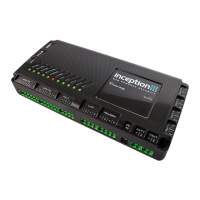
2. If not already supplied in an enclosure, install the controller in the enclosure. Fit the metal PCB
mounting clips into 4 holes in the mounting plate or chassis that align with the mounting holes in
the corners of the controller case. Position the controller on the standoffs and secure with the
four 25mm M3 screws.
3. The installation kit also provides four threaded brass standoffs. These can be used to raise the
position of the mounting plate or the controller if necessary to provide access to the USB and
Ethernet connectors.
4. With no power or batteries connected to any device, install all other system components and the
system wiring according to the instructions in this manual and other relevant installation manuals.
5. NOTE: The Battery is a non-power-limited source. Maintain 0.25in (6.5mm) spacing between
Power-limited and Non Power-limited circuits.
6. Before applying power to any device, check all power supply connections and outputs for short
circuits.
7. Power up the system and check the LEDs on the controller. Initially the POWER LED will come
ON, then after a pause of approximately 20 seconds the other LEDs will light in sequence. When
this boot sequence is complete, the SYSTEM LED will flash green to indicate the controller is
running. The other LEDs will indicate the current state/condition of their respective operations.
See the table on the following page.
8. Referring to the Inception Quickstart guide, establish your browser connection and proceed with
testing, programming and commissioning the system. The browser provides a “Commissioning
Checklist” and details of programming options via info buttons to assist in this process.
9. The supported web browsers for Inception are:
Chrome; Firefox; Safari; Opera; Microsoft Edge;
Android; iPad/iPhone; Internet Explorer 9 or later.
NOTE: Inception firmware 2.0.0 does not support Internet Explorer or older iOS browsers.
Firmware prior to V2.0.0 or from 2.0.2 onwards, does support these browsers; however it is
recommended to use a more up-to-date browser.
10. When programming and commissioning of the system is complete, and whenever programming
changes are made, use the browser to create a backup of the Inception controller database. Use
the “Backup Database” option in the Backup/Restore section of the System options.
IMPORTANT NOTE: Unlike traditional commissioning software programs, the inception browser
does not automatically save a copy of the controller database on the PC. You must use the
“Backup Database” feature to ensure that a copy of the controller programming is saved.
11. CAUTION! FOR CONTINUED PROTECTION AGAINST THE RISK OF FIRE, REPLACE WITH
ONLY THE SAME TYPE AND RATING OF FUSE. DISCONNECT POWER BEFORE
REPLACING THE FUSE OR SERVICING


 To Next Page
