9.9
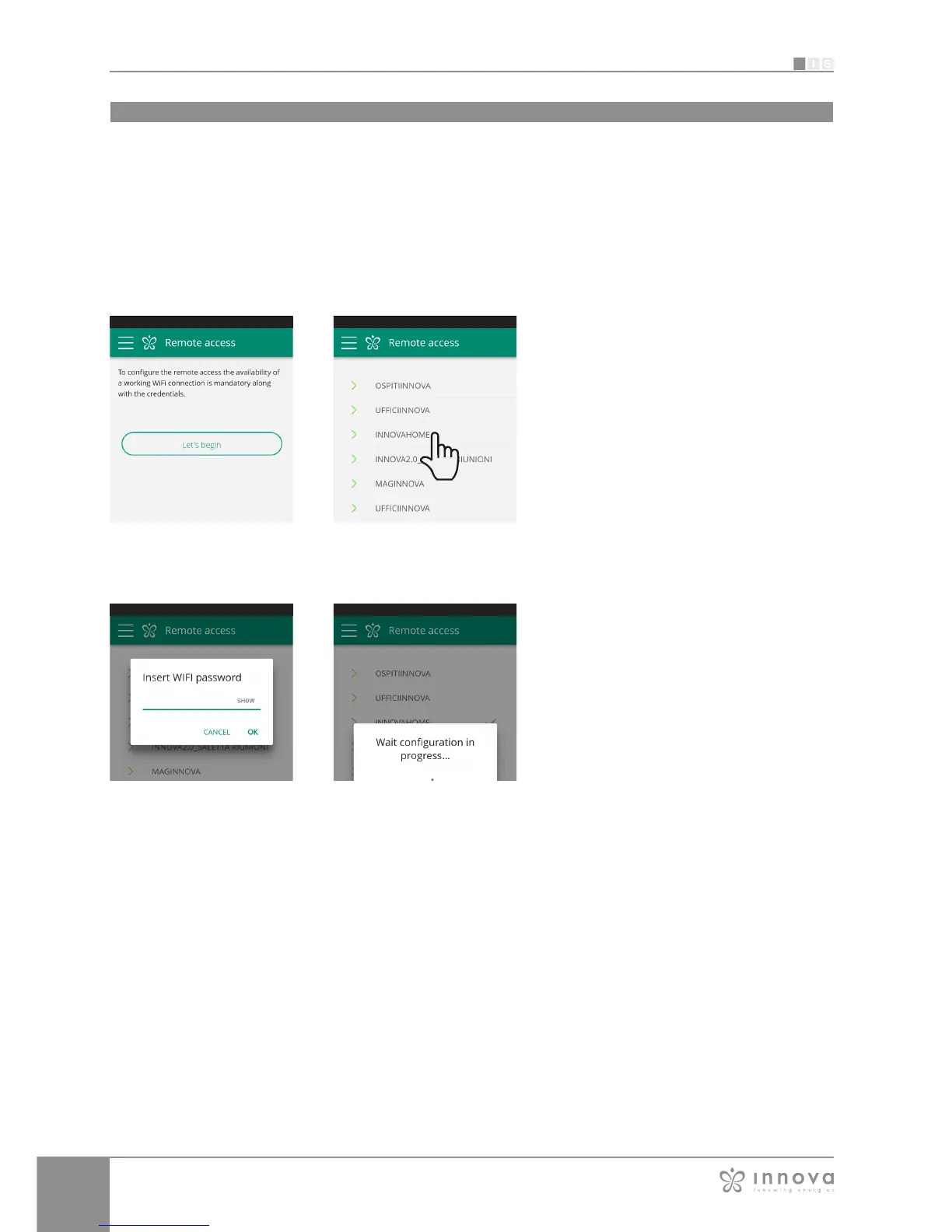
Figure 9-32 Figure 9-33
Figure 9-34 Figure 9-35
Remote access
Once you have selected the menu item
"Remote Access", a list of the available WiFi
connections will appear.
Note: the fancoil can connect only with
2.4GHz networks.
Select the preferred network for Internet
access.Then enter the WiFi network password
and confirm it.
REMOTE ACCESS
manage your fancoil even away from home
Wifi network features
• working internet connection
• static public IPs are not required
• no incoming configurations are required on the
ROUTER (NAT or other specific rules) - working dns
service
• functioning DHCP service or alternatively the
following information:
- local ip address to be assigned to the subnet mask
card
- gateway
- dns
• if the router or other entities in the customer's
network have ACLs at the MAC-address level, the
MAC-address of the card must be enabled if the
client wants to control some features locally (noe
change, advanced settings change, pc control) WIFI
network must allow communication between devices
connected to the same wifi (= WiFi Isolation must not
be enabled)
Technical requirements for the proper functioning of the
cloud connection TCP port 80, 443, 19009, 18321,
18009 output
The App connects the fancoil to the domestic
network and the main screen to manage the
appliance will appear again on the smartphone/
tablet.
At this point, the smartphone/tablet is
connected to the selected network.
From this moment, your fancoil is connected
to a server over the Internet and can be
managed from anywhere in the world over your
telephone's WiFi or data connection.
Note: In the event that the procedure is
not successful, the smartphone/tablet will
automatically reconnect to the local network of
the fancoil.
Therefore, repeat the procedure, rechecking
the password entered and the name of the
network.
Note: When the device is displayed in the
cloud it may happen that the display of "Temp"
is the name for the device.
In this specific case the device failed to restart,
the communication works correctly but the
name is incorrect. To solve, it is necessary
to rewind the fancoil (removing and returning
power).



 To Next Page