5G INDOOR ROUTER FX3100 USER GUIDE 14
Resetting your FX3100
You can reset your FX3100 to factory settings from the Admin web UI, Inseego Mobile app, or by using
the RESET button on the FX3100
CAUTION! Resetting returns your FX3100 to factory settings, including resetting the Wi-Fi name and
password and admin password to the defaults shown on the label. This disconnects all devices.
Resetting from the Admin web UI
To reset the FX3100 from the Admin web UI, select Settings > Backup and Restore and select Restore
factory defaults.
Resetting from the Inseego Mobile app
To reset the FX3100 from the Inseego Mobile app, select Mobile Options, then select Factory Reset.
Resetting with the RESET button
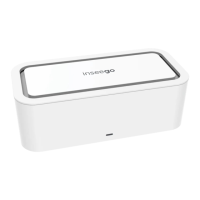
The reset button is in a small hole located on the back of the
FX3100
.
1. Verify that your FX3100 is powered on.
2. Locate the reset opening on the back of your router.
3. Press the recessed button for about five seconds until the device resets. The LED blinks white,
then turns red. When it is green or blue, your FX3100 is ready.
NOTE: The first time you perform a factory reset, it may take over two minutes for your FX3100
to restart.


 To Next Page