EasyManua.ls Logo

Inseego Wavemaker PRO FG2000e - User Manual

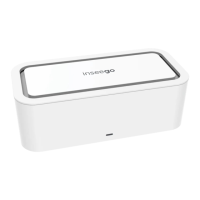
Inseego Wavemaker PRO FG2000e
101 pages
Print Icon
To Next Page IconTo Next Page
Loading...
Inseego Wavemaker
TM
PRO
5G Indoor Router FG2000e
USER GUIDE

Table of Contents

Question and Answer IconNeed help?

Do you have a question about the Inseego Wavemaker PRO FG2000e and is the answer not in the manual?

Summary

Introduction and Getting Started

Overview

Provides a description of the FG2000e router and its connectivity via Wi-Fi and Ethernet.

System Requirements

Specifies compatibility with operating systems and browsers for the FG2000e router.

Ports and Buttons

Identifies physical ports and buttons on the FG2000e, including SIM slots and various connections.

Indicator LEDs

Explains the status communication of the FG2000e via LED colors and operations.

Getting Started

Guides through initial setup steps like SIM card installation, battery insertion, and powering on.

Caring for your Router

Details on general care, replacing SIM cards, resetting the router, and helpful care tips.

Configuration

Overview

Explains configuration options using the Inseego Mobile App, Admin Web UI, or Inseego Connect.

Admin Password

Instructions for changing the admin password and setting up a security question for password recovery.

Managing Cellular Data Usage

Details on monitoring and managing cellular data usage via the dedicated Cellular Data Usage page.

Managing Wi-Fi Settings

Covers setup for primary and guest Wi-Fi networks, including band selection and security options.

Managing Connected Devices

Explains how to view details and manage devices currently connected to the 5G Indoor Router.

Managing Settings

Covers system settings like Preferences, Software Update, Backup/Restore, GPS, and Advanced configuration.

Managing VPN

Guides on establishing and configuring secure connections using IPSec VPN and OpenVPN.

Managing Access Control

Instructions for controlling internet access to specific devices via profiles and assignments.

Viewing Info About the Router

Details on accessing general status, system status, Ethernet WAN, and Cellular WAN information.

Advanced Settings

Overview

Introduces advanced settings for technical users, with a warning about potential impact on stability and security.

LAN Tab

Provides LAN configuration for IPv4, IPv6, DNS, DHCP settings, and IP Passthrough.

WAN Tab

Covers selecting active WAN interfaces and configuring keep alive settings via Admin Web UI or Inseego Connect.

SIM Tab

Details SIM status information and management, including PIN lock, APN settings, and SIM switching.

Firewall Tab

Explains adjusting firewall security levels, DMZ configuration, and defining specific firewall rules.

MAC Filter Tab

Allows filtering access to the primary Wi-Fi network by specifying allowed device MAC addresses.

Port Filtering Tab

Enables blocking outgoing connections and permitting selected applications based on port numbers.

Port Forwarding Tab

Allows forwarding incoming Internet traffic to specific devices on the local network via port numbers.

Inseego Connect Tab

Guides on enabling and configuring connection settings for the Inseego Connect cloud platform.

Port Configuration Tab

Explains how to configure Ethernet ports for WAN or LAN and manage WAN port settings.

Troubleshooting and Support

Overview

Provides tips for solving common problems by checking connections, signal strength, and restarting the device.

Technical Support

Advises on restarting the device and ensuring SIM card insertion before contacting technical support.

Product Specifications and Regulatory Information

Product Specifications

Lists device details, dimensions, ports, chipset, environmental operating conditions, and network connectivity.

Wi-Fi

Details Wi-Fi standards, MU-MIMO support, simultaneous dual-band, multiple SSID, and device support.

Security

Covers secure boot, admin security, encrypted configuration backup/restore, and advanced firewall features.

Regulatory Information

Provides FCC, ISED, and other regulatory notices, including RF exposure and compliance statements.

Summary

Introduction and Getting Started

Overview

Provides a description of the FG2000e router and its connectivity via Wi-Fi and Ethernet.

System Requirements

Specifies compatibility with operating systems and browsers for the FG2000e router.

Ports and Buttons

Identifies physical ports and buttons on the FG2000e, including SIM slots and various connections.

Indicator LEDs

Explains the status communication of the FG2000e via LED colors and operations.

Getting Started

Guides through initial setup steps like SIM card installation, battery insertion, and powering on.

Caring for your Router

Details on general care, replacing SIM cards, resetting the router, and helpful care tips.

Configuration

Overview

Explains configuration options using the Inseego Mobile App, Admin Web UI, or Inseego Connect.

Admin Password

Instructions for changing the admin password and setting up a security question for password recovery.

Managing Cellular Data Usage

Details on monitoring and managing cellular data usage via the dedicated Cellular Data Usage page.

Managing Wi-Fi Settings

Covers setup for primary and guest Wi-Fi networks, including band selection and security options.

Managing Connected Devices

Explains how to view details and manage devices currently connected to the 5G Indoor Router.

Managing Settings

Covers system settings like Preferences, Software Update, Backup/Restore, GPS, and Advanced configuration.

Managing VPN

Guides on establishing and configuring secure connections using IPSec VPN and OpenVPN.

Managing Access Control

Instructions for controlling internet access to specific devices via profiles and assignments.

Viewing Info About the Router

Details on accessing general status, system status, Ethernet WAN, and Cellular WAN information.

Advanced Settings

Overview

Introduces advanced settings for technical users, with a warning about potential impact on stability and security.

LAN Tab

Provides LAN configuration for IPv4, IPv6, DNS, DHCP settings, and IP Passthrough.

WAN Tab

Covers selecting active WAN interfaces and configuring keep alive settings via Admin Web UI or Inseego Connect.

SIM Tab

Details SIM status information and management, including PIN lock, APN settings, and SIM switching.

Firewall Tab

Explains adjusting firewall security levels, DMZ configuration, and defining specific firewall rules.

MAC Filter Tab

Allows filtering access to the primary Wi-Fi network by specifying allowed device MAC addresses.

Port Filtering Tab

Enables blocking outgoing connections and permitting selected applications based on port numbers.

Port Forwarding Tab

Allows forwarding incoming Internet traffic to specific devices on the local network via port numbers.

Inseego Connect Tab

Guides on enabling and configuring connection settings for the Inseego Connect cloud platform.

Port Configuration Tab

Explains how to configure Ethernet ports for WAN or LAN and manage WAN port settings.

Troubleshooting and Support

Overview

Provides tips for solving common problems by checking connections, signal strength, and restarting the device.

Technical Support

Advises on restarting the device and ensuring SIM card insertion before contacting technical support.

Product Specifications and Regulatory Information

Product Specifications

Lists device details, dimensions, ports, chipset, environmental operating conditions, and network connectivity.

Wi-Fi

Details Wi-Fi standards, MU-MIMO support, simultaneous dual-band, multiple SSID, and device support.

Security

Covers secure boot, admin security, encrypted configuration backup/restore, and advanced firewall features.

Regulatory Information

Provides FCC, ISED, and other regulatory notices, including RF exposure and compliance statements.

Inseego Wavemaker PRO FG2000e Specifications

General IconGeneral
ModelFG2000e
CategoryNetwork Router
Wi-Fi StandardWi-Fi 6 (802.11ax)
Wi-Fi Frequency Bands2.4 GHz, 5 GHz
5G CompatibilityYes
Maximum Wi-Fi Speed1.8 Gbps
WAN Technology5G, 4G LTE

Related product manuals