5G INDOOR ROUTER FG2000e USER GUIDE 14
Admin Web UI
Once your 5G Indoor Router is connected to a device that supports Web browsing, you can use the Web
User Interface to customize settings, change your password, and access information.
On a device connected to the 5G Indoor Router, open any Web browser and go to http://192.168.1.1.
Select Sign In (in the top-right corner of the screen), and enter the Admin Password printed on the
bottom of the FG2000e.
Inseego Connect
TM
Go to connect.inseego.com to sign up for a free Inseego Connect account, which provides the fullest
experience for monitoring and managing FG2000e devices from anywhere in the world with access to a
web browser.
Caring for your Router
This section provides information on general care and restoring your 5G Indoor Router to factory default
settings.
Replacing a SIM Card
Your SIM card is a small rectangular plastic card that stores your phone number and important
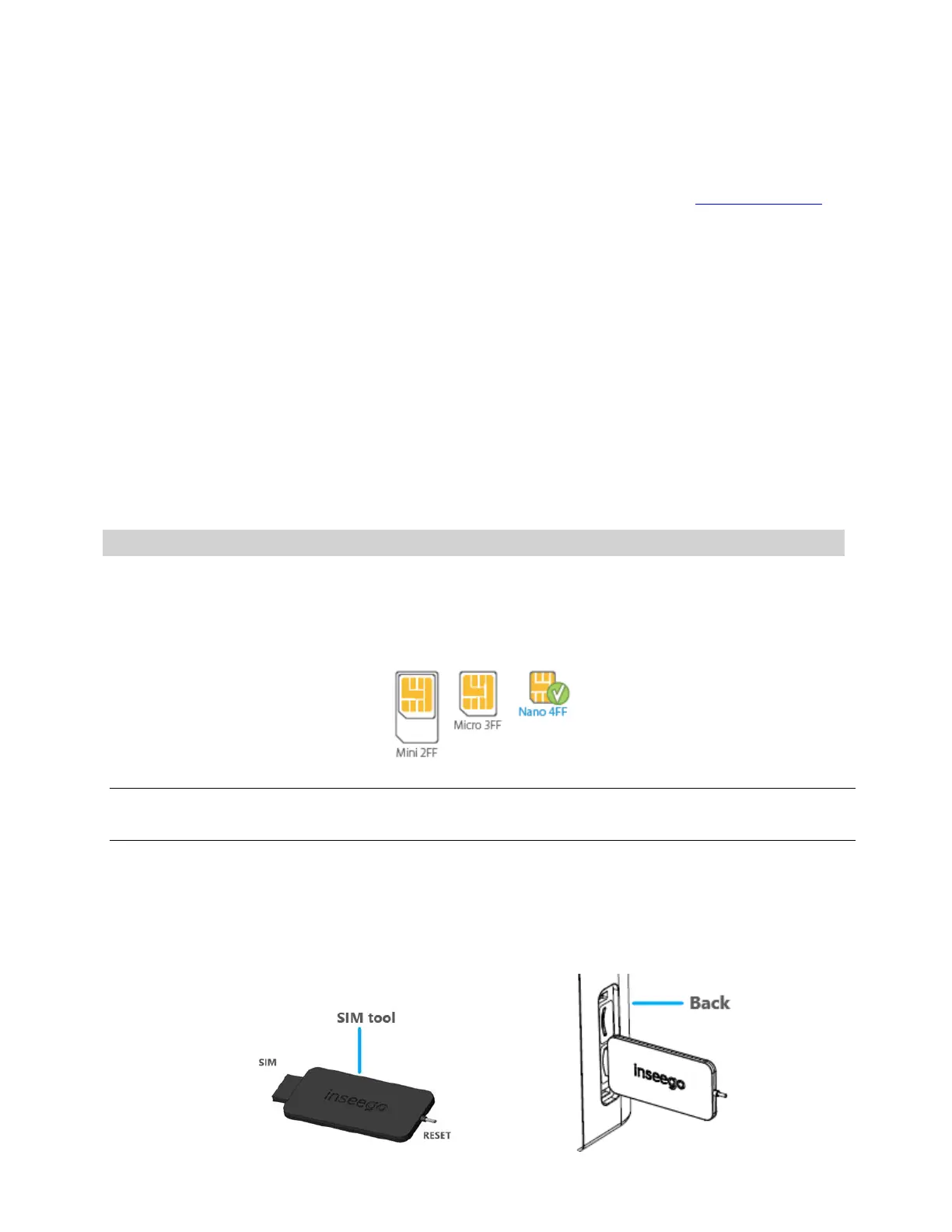
information about your wireless service. The 5G Indoor Router supports only Nano SIM cards. To replace
a SIM card, select the correct SIM for this device.
CAUTION! Always use a factory-made SIM card supplied by the service provider. Do not bend or scratch
your SIM card. Avoid exposing your SIM card to static electricity, water, or dirt.
To replace a SIM card:
1. Remove the cover from the SIM slot on the right side of the device.
2. Use the SIM end of the provided SIM tool to remove the existing SIM card.


 To Next Page