Intel
®
RAID Software User’s Guide 89
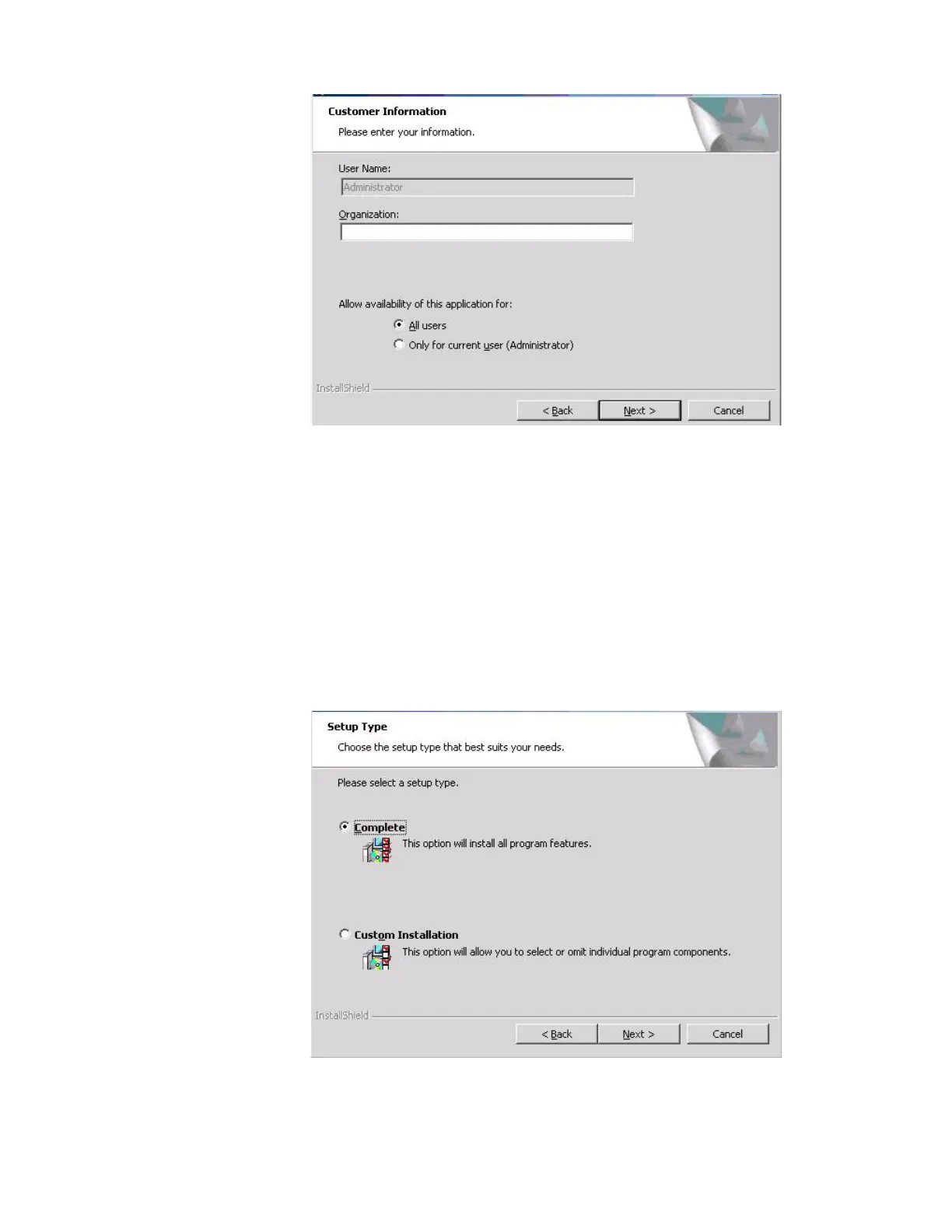
Figure 40. Intel
®
RAID Web Console 2 – Customer Information Screen
4. Enter your user name and organization name. At the bottom of the screen, select an
installation option:
— If you select All users, any user with administrative privileges can view or change
the RAID configurations.
— If you select Only for current user (Administrator), only you can view or change
the RAID configurations.
5. Click Next to continue.
6. Accept the default Destination Folder, or click Change to select a different destination
folder. Click Next to continue.
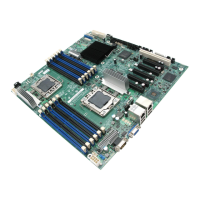
The Setup Type screen is displayed, as shown in Figure 41.
Figure 41. Setup Type Screen
7. Select one of the following setup options.



 To Next Page