100 Intel
®
RAID Software User’s Guide
Small icons represent the servers, controllers, and other devices. A red circle to the right of an
icon indicates that the device has failed. For example, this icon indicates that a disk drive has
failed:
A yellow circle to the right of an icon indicates that a device is running in a degraded state. For
example, this icon indicates that a virtual drive is running in a degraded state due to the failure
of a disk drive:
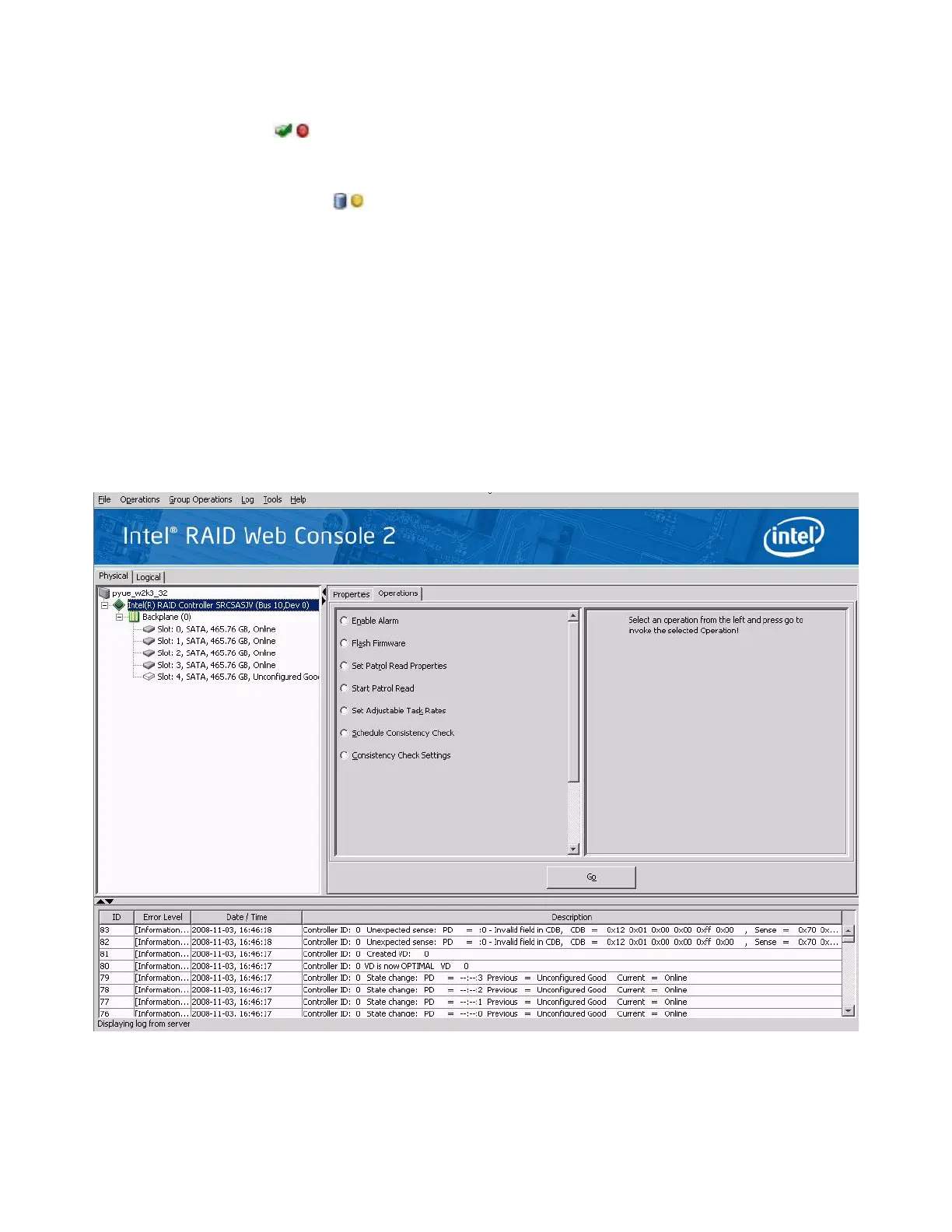
Properties/Operations/Graphical View Panel
Depending on the kind of device selected in the left panel and your login mode (full-access or
view-only), the right panel has either two or three tabs.
The Properties tab displays information about the selected device.
Note: Depending on different Intel(R) RAID Web Console 2 versions, Operations and Graphical tabs may
not exist, or only exist in old version utility. The screen displays in following sections show all these
view panels for user reference, in case different versions of Intel
®
RAID Web Console 2 is installed
on server system.
Figure 46. Intel
®
RAID Web Console 2 – Operations Tab



 To Next Page