18
Direct Access Memories and the Memory Protect Switch
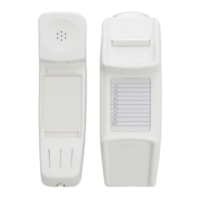
The Memory Protect switch protects the 5 uppermost Direct Access memory keys to prevent them from
being overwritten by the user. This allows pre-set functions to be allocated to them for large user
groups. The Memory Protect switch is located underneath the Direct Access memory card (see
Figure 4).
It is recommended that some of the 10 Direct Access memories be programmed to create network features
access keys to store some of your favourite network facility codes (e.g. Diversion, Call Forward, Call Back,
etc.). This will enable more convenient access to these features without the need to remember the necessary
codes. The memory card paper insert can be used to label the keys to indicate their new functions (i.e. the
name of the network feature). Consult your system user guide for the codes that you need to store.
If some of your Direct Access memory keys are locked and prevent storage of new numbers this may be
due to the presence of pre-programmed codes chosen by your system administrator. Before moving the
switch to the “Non-Protected” position we recommend that you contact your system administrator,
Interquartz or your dealer to discuss if they can be unlocked. Changing the switch setting may allow any
pre-programming to be lost.
To program or alter the contents of a protected Direct Access memory
1. Remove the Direct Access memory card paper insert and clear plastic cover to reveal the Memory
Protect Switch (see Figure 4)
2. Move the Memory Protect Switch to the “Non-Protected” position as shown in Figure 4
3. Press the Reset button
4. Press STORE; the display will show “STORE”
5. Press the memory key either once to store in a one-touch memory or twice for a two-touch memory;
the display will show “ENTER NUMBER”
6. Enter the telephone number and press STORE
7. Enter the name (name of the feature code or destination) by using the keypad and press STORE to
confirm; the display will show “MEMORY STORED”
8. Move the Memory Protect Switch to the “Protected” position as shown in Figure 4
9. Press the Reset button
10.Replace the Direct Access memory card paper insert and clear plastic cover.


 To Next Page