23
CALL WAITING DISPLAY
The IQ335 can display the details of a current caller while you are already on a call. To enable the Call
Waiting feature, you may need to request or subscribe the call waiting service from your network
provider. For details, please call your service provider.
Note: It is not recommended to use more than two Caller ID phones in parallel on the same line as their
performance may be affected. For example, Caller ID display of a second call while you are off-
hook (i.e. Call Waiting Caller ID, sometimes known as“Type 2 Caller ID”) may not be received by
the IQ335 if another parallel connected Caller ID phone is in use and off hook in party line fashion
on the same call.
Calls list
The IQ335 stores the details of all incoming calls in a Calls list, which is accessible by pressing the
CALLS key. The Calls list can store up to 80 caller records, and when it has reached its full capacity the
oldest record will be removed to accommodate the new call.
Scrolling ( ) keys
When reviewing any lists on the display, the key (also labeled “Volume +”) and the key (also
labeled “Volume –”) key serve as scrolling keys to move up and down the lists.
To view the Calls List and dial a Number in the Calls List
1. Press CALLS to display the most recent incoming call; if there is no entry in the Calls list, the display
will show “NO ENTRIES”
2. Scroll down (press ) to move on to the previous call; subsequent presses will display successively
earlier calls
3. To dial any displayed number; press DIAL
4. If the end of the Calls list is reached, the display will show “END OF LIST”; you may continue to scroll
up ( ) or down ( ) to review the list again
5. If you choose not to dial any number from the Calls list, the DISPLAY will revert to clock mode in 10
seconds.
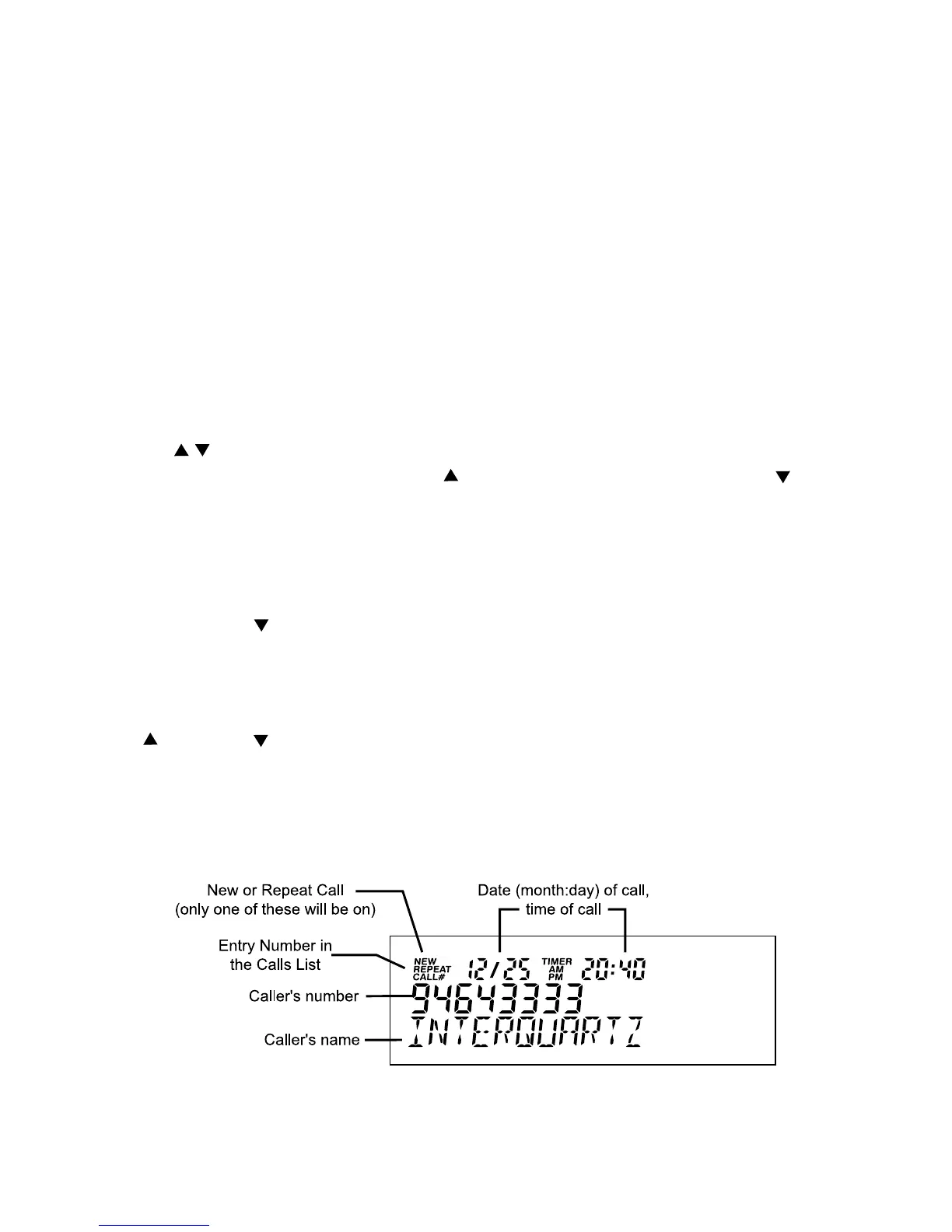
A typical call displayed from the Calls list is depicted in Figure 5.
FIGURE 5: DISPLAY OF A TYPICAL CALL FROM THE CALLS LIST



 To Next Page