15
OPERATION AND SET-UP ON THE CONTROLLER
inVENTer Connect controller platform | Operating instructions
The mode key – brief overview
The mode key can be used to trigger system congurations. The dierent actions are triggered by
holding the mode key for dierent lengths of time.
• Activate controller/call up zone selection menu:
Press the mode key briey and release it again.
The menu for selecting a ventilation zone opens. You can then use the navigation
keys to select a ventilation zone and call up its status (select key).
During this time the LED lights up solid WHITE.
• Activating pairing of system components:
Press the mode key and hold it down for 3 seconds.
This activates system component pairing for a predened time to establish a connection with the
ventilation units and sensors. During this time the LED ashes WHITE.
• Activating the Bluetooth connection:
Press the mode key and hold it down for 6 seconds.
This activates Bluetooth pairing for a predened time to establish a connection with the mobile
application (app). During this time the LED ashes BLUE.
• Performing a reset:
Press the mode key and hold it down for 10 seconds.
Then conrm the reset procedure by briey pressing the key again. This will delete all paired
devices and reset all settings. If the operation is not conrmed, the controller automatically returns
to the normal ventilation operation specied by the ventilation prole without resetting.
"Pressing and holding" the mode key is cyclical. If the mode key is pressed for longer than 15
seconds, the activation of the pairing of system components becomes active again.
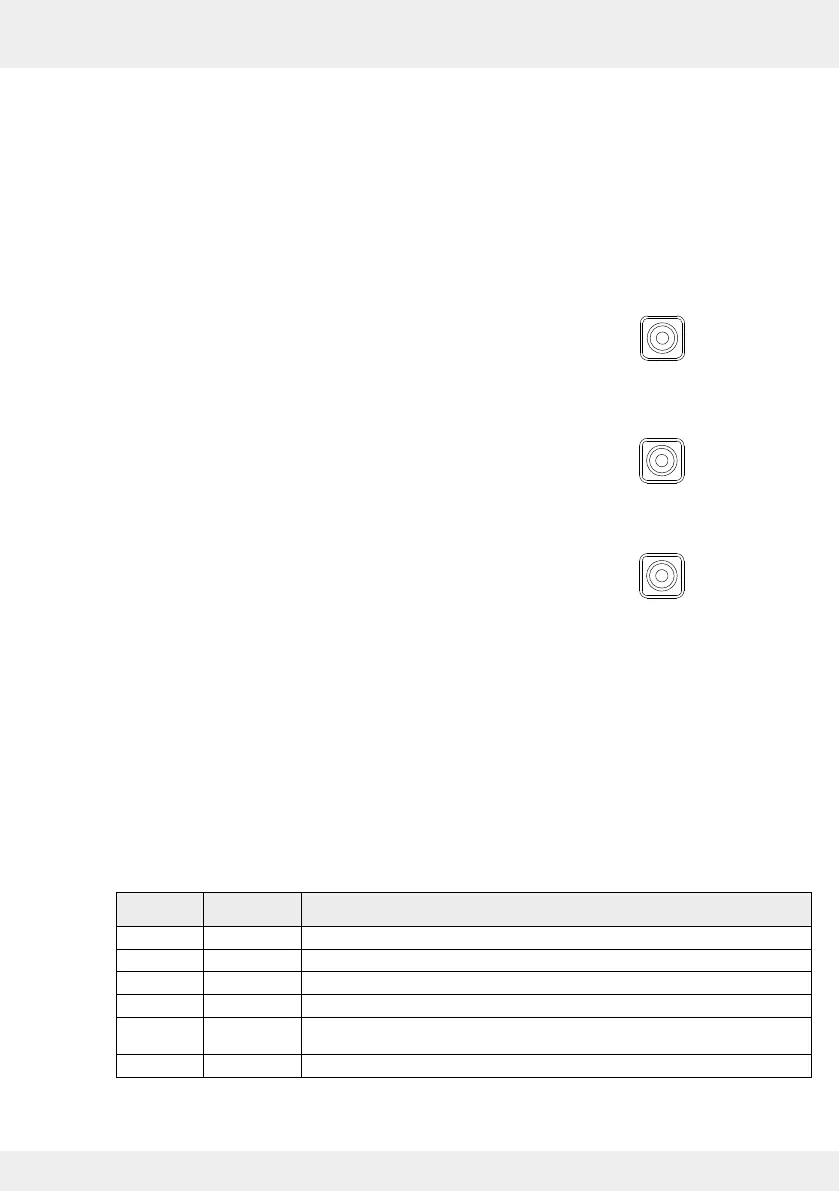
3 seconds hold down
6 seconds hold down
10 seconds hold down
The status LED (RGB LED)
The status LED indicates the status of the controller using dierent colours.
The following displays are possible:
LED colour LED state Status of the controller
WHITE Solid Controller in normal ventilation mode
WHITE Flashing Controller is ready for pairing with new components (inner covers, sensors)
BLUE Flashing Bluetooth connection is being established
BLUE Solid Bluetooth connection established
RED /
WHITE
Alternate
ashing
Error is displayed
YELLOW Flashing An update is being transferred to the controller
Table 2: Status LED display



 To Next Page