50
OPERATION AND SETUP WITH THE APP
inVENTer Connect controller platform | Operating instructions
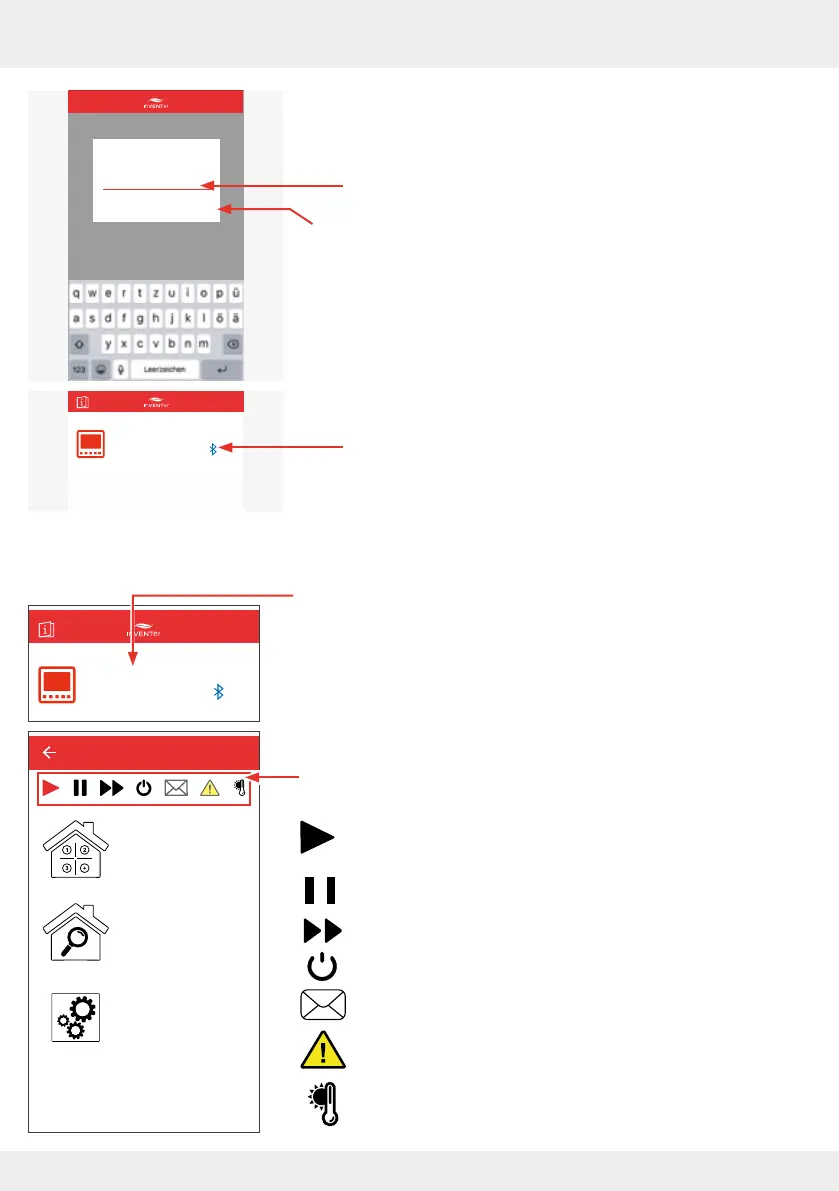
► Enter a name. This is freely selectable and can consist of a
maximum of 20 characters.
Or:
Keep the inVENTer product name for the controller.
► Press "OK".
The controller appears on the display screen to indicate that
it is connected and available.
The Bluetooth symbol appears in blue.
4.2 The screen of the app
After pressing the area with the available controller, the window
below (start menu) appears with the possible menus:
• Ventilation zone summary
• Device overview
• Advanced settings
. All settings can be made in a menu.
The navigation bar contains cross-zone control and information
options:
Auto symbol: Automatic operation according to the ventila-
tion prole setting.
Pause symbol: Quick selection of pause for the system
Boost symbol: Quick selection of boost for the system
Switch symbol: Quick selection of ON/OFF for the system
Message symbol: System notications
Warning symbol: Display of error messages
External temperature and humidity sensor symbol:
Outdoor temperature is displayed (if installed).
Advanced settings
Device overview
Ventilation zone
overview
Easy Connect e16
Easy Connect e16
Controller
Device
available
Enter the new
product name
Easy Connect e16
ABBRECHEN OK
CANCEL
Easy Connect e16
Controller
Device
available



 To Next Page