6
Ioline
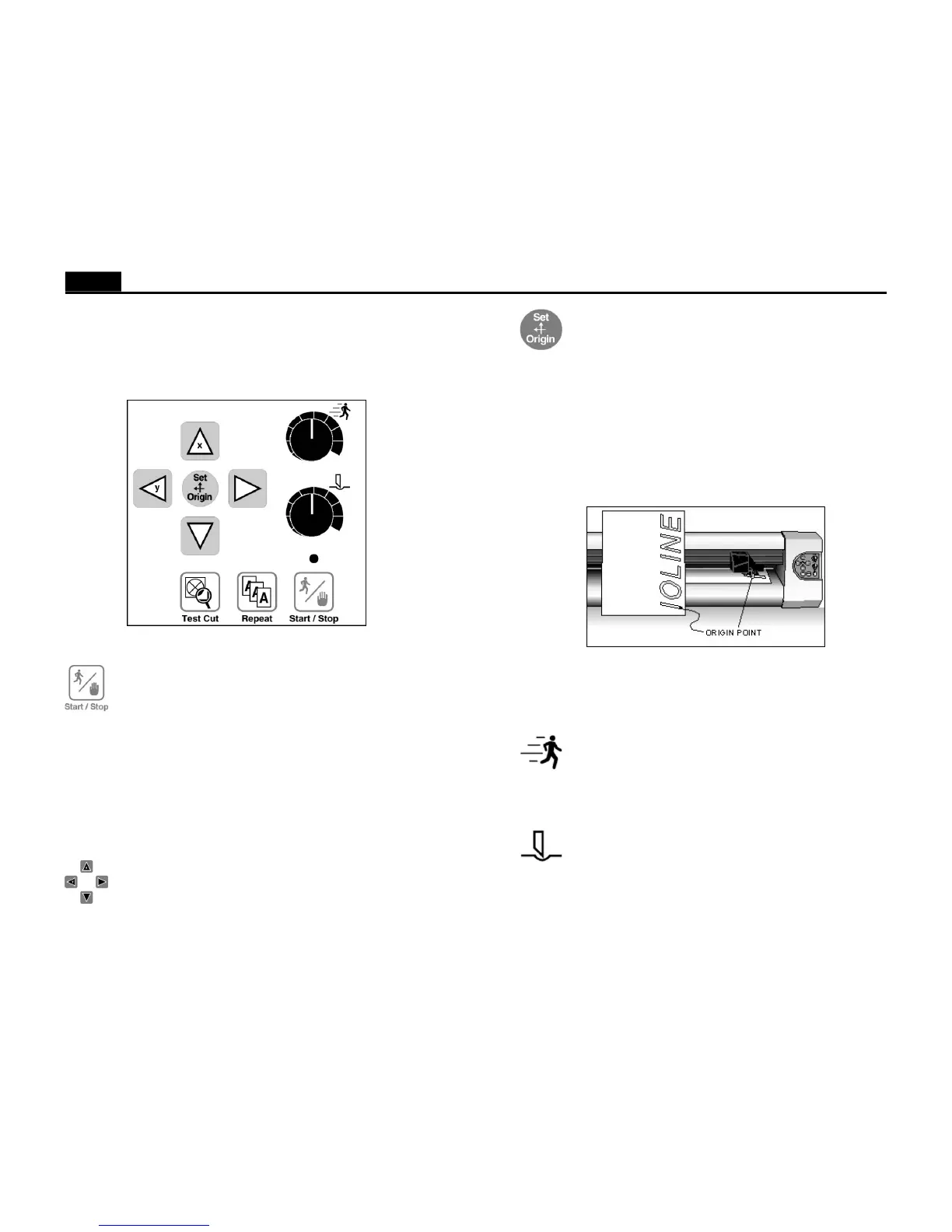
Figure 2. The Cutter Keypad.
OPERATION
KEYPAD CONTROLS
The keypad allows access to the main cutter functions.
Start/Stop
The Start/Stop key connects or disconnects communication be-
tween the computer and the cutter. If the Start/Stop key is pressed
during cutting (Stop mode) the machine will stop when the cur-
rent vector is finished. The Arrow keys are active when in Stop
mode. When the Start/Stop key is pressed again, (Start mode)
cutting will resume exactly where it stopped.
START green light Arrow keys inoperable, cutter
online (ready to receive instructions).
STOP red light Arrow keys operable, cutter offline
(not ready to receive instructions).
Arrow Keys
Pressing the Arrow keys moves the material back and forth or the
carriage from side to side. The arrow keys will not work unless the
cutter is in Stop mode (see Start/Stop above).
Figure 3. Origin Point.
Note: Design software usually refers to the origin as “lower left”
because it is the lower left corner of a design. Because the cut is
usually oriented as shown, it is physically on the right side of the
cutter.
Speed
Use the Speed knob on the front panel of the cutter to adjust the
speed. Turn the knob clockwise to increase the speed, or counter-
clockwise to decrease the speed. Set the speed according to the
type of cutting and material being used. See the Cutting a Design
section of this manual.
Force
Adjust the force by using the Force knob on the front panel. Turn
the Force knob clockwise to increase the force exerted on the
blade. See the section on Cutting a Design for the recommended
settings. The range of force available at the knob is adjustable in
the Control Center. The available range is 1 - 400 grams.
Note: Using too much force can cause excessive drag, damage
the blade, or tear the material.
Set Origin
The Set Origin key sets the initial origin or starting position for
the design. It is best to set a new origin before cutting each design.
If a new origin is not set before sending a file to the cutter, the
cutter will begin at a point determined by the previous cut file.
The software may give the option of selecting this ending point.
The cutter will then treat the new file as a continuation of the
previous cut. This will affect the repeat function. Refer to the
Repeat section below. To set a new origin, make sure the cutter is
in Stop mode with the red light on. Use the Arrow keys to move
the pen or blade to the intended origin of the cut, then press the Set
Origin key. The cutter will then accept cut files.



 To Next Page