TIGER XT Instrument User Manual V1.2
Pioneering Gas Sensing Technology. Page 25 of 71 ionscience.com
6. Using the TigerPC Software and Downloading Data
The TigerPC software enables you to fully configure the instrument, view and edit gas tables, and
view logged data, including health and safety readings.
PC Requirements
TigerPC Software must be used in conjunction with a PC or laptop using Windows 10.
Installation of TigerPC Software
Download the TigerPC software from the ION Science website:
www.ionscience.com
Run setup.exe to install the software.
Alternatively, the TigerPC software can be purchased on a memory stick.
Follow the prompts until the installation is complete. Should you have difficulty, please contact your
local distributor, or contact ION Science directly:
www.ionscience.com
Connecting a TIGER XT to a PC
The TIGER XT must be functionally checked prior to entering a hazardous area
after every occasion when a connection has been made to the USB port. The
instrument must complete its start-up routine and display legible readings. If the
LCD display fails to show an intelligible and uncorrupted display the instrument
must not enter a hazardous area.
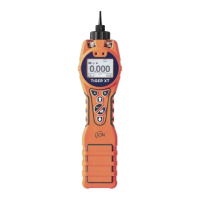
Connect your TIGER XT to the PC. The (type B) USB port of the TIGER XT is located at the back of the
instrument, above the charging connectors.
While the TIGER XT is connected, the instrument will go into Sleep Mode if set to do so in TigerPC.
The instrument will “awaken” when it is disconnected.


 To Next Page