ioSafe NAS User's Guide
Based on Synology DSM 5.0
13
Change Network Settings
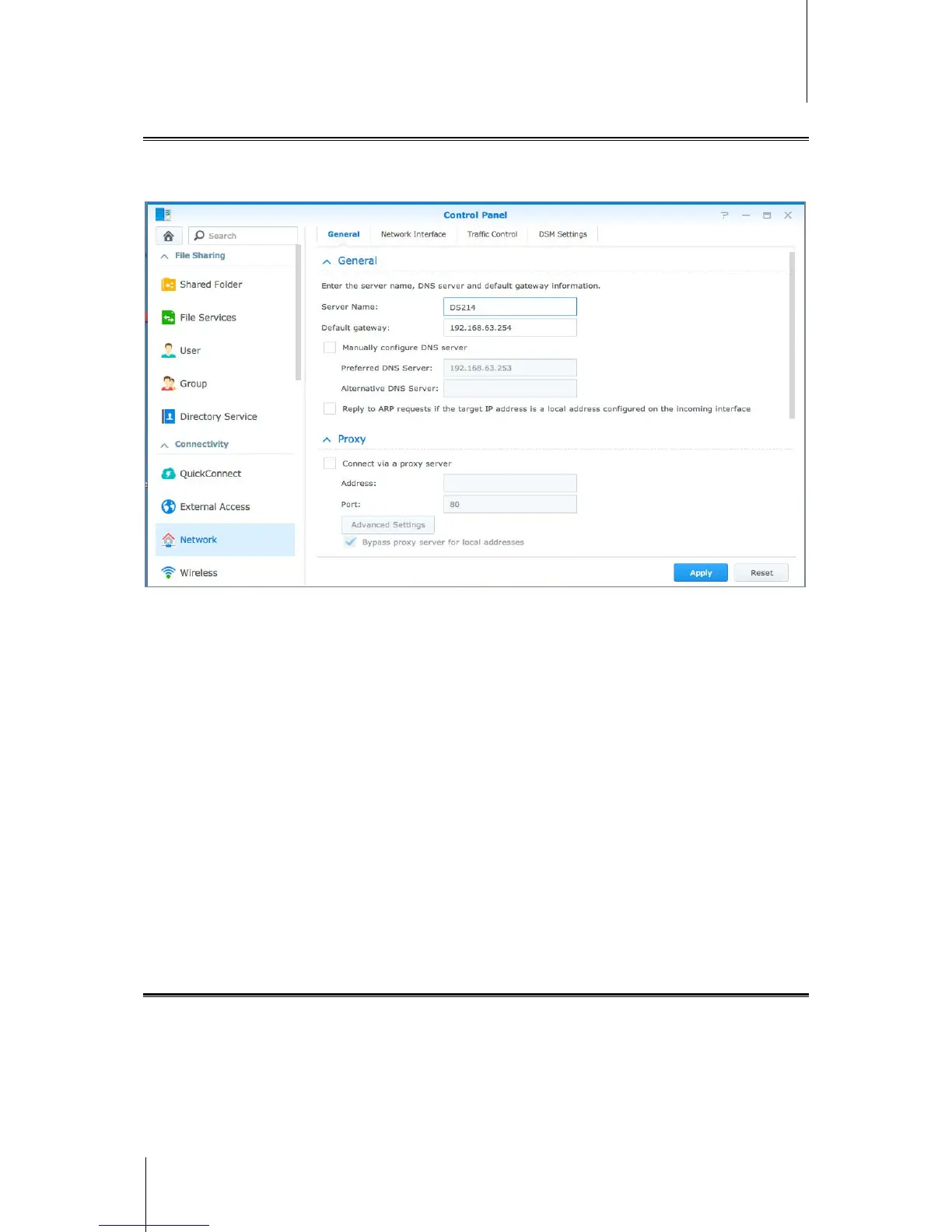
Go to Control Panel > Network to configure network settings and connect your IoSafe NAS device to the
Internet. You can also manage traffic control rules to adjust the outgoing traffic allowed when clients access
services on your IoSafe NAS. For more detailed instructions, please see DSM Help.
General
The General tab provides options to edit the name and default gateway of the IoSafe NAS, as well as configure
domain name server, proxy server settings and IPv6 tunneling.
Network Interface
The Network Interface tab provides options to manage the network interfaces with which your IoSafe NAS
connects to the network.
Traffic Control
Traffic control aims to control the outgoing traffic of services running on IoSafe NAS. Click Create to create traffic
control rules.
DSM Settings
Change the port number for accessing DSM or configure HTTPS settings. When the HTTPS connection function
is enabled, any connection to IoSafe NAS via the HTTPS protocol will be encrypted with the SSL/TLS encrypting
mechanism.
Join Wireless Network
1
At Control Panel > Wireless, you can connect your IoSafe NAS device to a wireless network, or create a
wireless hotspot to share its Internet connection with other devices wirelessly. Also, you can manage Bluetooth
adapters and connect Bluetooth devices to your IoSafe NAS. For more detailed instructions, please see DSM
Help.
---------
1
Supported on specific models only.



 To Next Page