ioSafe NAS User's Guide
Based on Synology DSM 5.0
8
4 Upload Queue: Appears when you start uploading files to the IoSafe NAS. Click to see more details, like
progress and upload speed.
5 Notifications: Displays notifications, like errors, status updates, and package installation notifications.
6 Options: Shutdown, restart, logout, or modify personal account options.
7 Search: Quickly find specific applications, packages, or DSM Help articles here.
8 Widgets: Show or hide widgets.
9 Pilot View: See a preview of all open application and package windows.
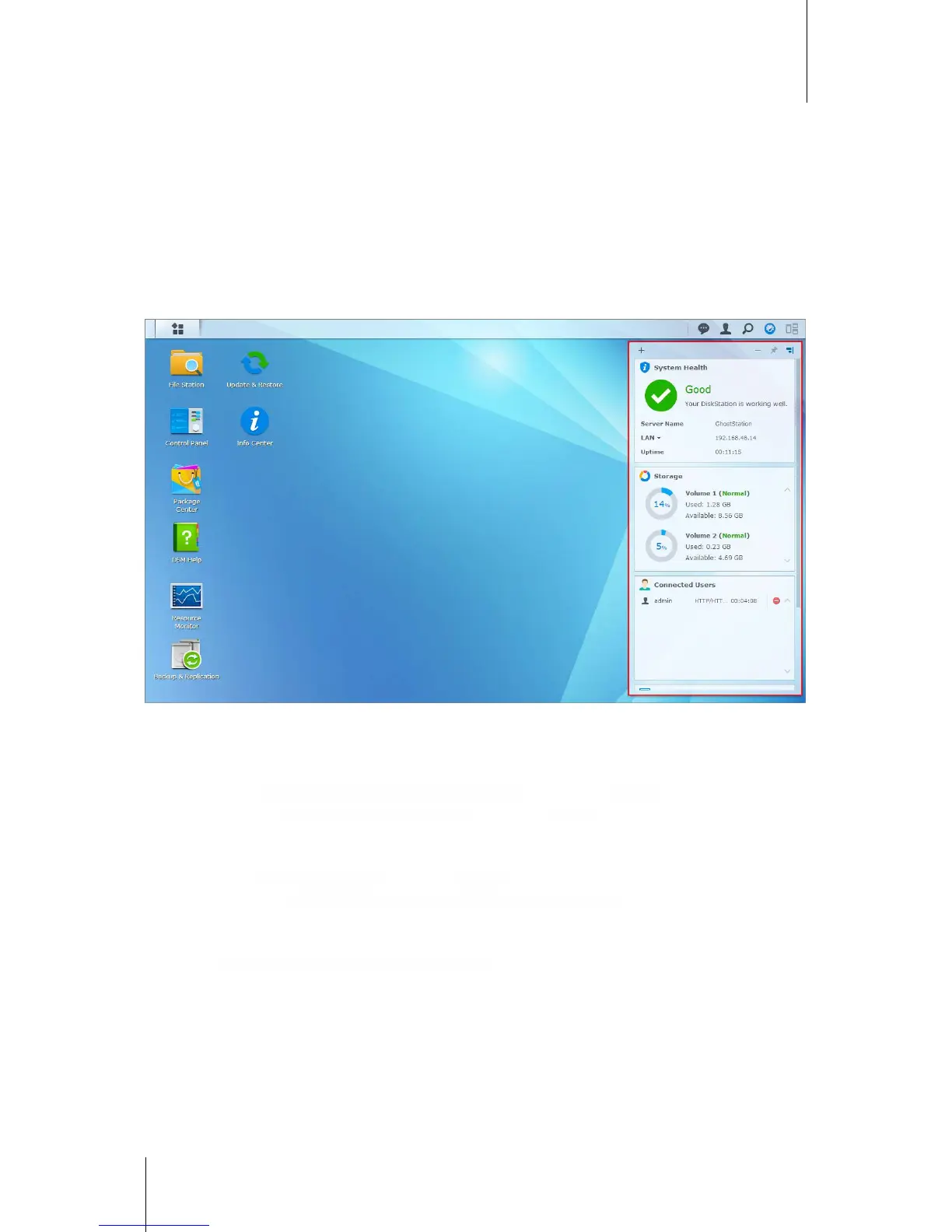
Widgets
Widgets display various types of system information related to your IoSafe NAS.
To open/close the widget panel:
Click Widgets to show or hide the widgets panel.
Click the + to select which widgets to display. You can choose from the following:
Current Users: See a list of users who are currently accessing IoSafe NAS resources.
File Change Log: View the file change log records of IoSafe NAS services.
No active logs: Appears when none of the logs (Samba, WebDAV, FTP, File Station) is enabled.
No logs available: Appears when any one of the logs (Samba, WebDAV, FTP, File Station) is enabled.
Recent Logs: View the log records of IoSafe NAS services.
Resource Monitor: Monitor the CPU usage, memory usage, and network flow.
Scheduled Backup: View the status of your backup tasks.
Scheduled Tasks: View a list of upcoming tasks.
Storage: View the volume usage and disk status of your IoSafe NAS.
System Health: Obtain an overall status of your IoSafe NAS and all connected devices (if any). You will be
advised to take corrective action when system error occurs.



 To Next Page