ADwin Installation, manual version 2.1, December 2005 31
ADpcmcia adapter
ADwin
– Windows NT
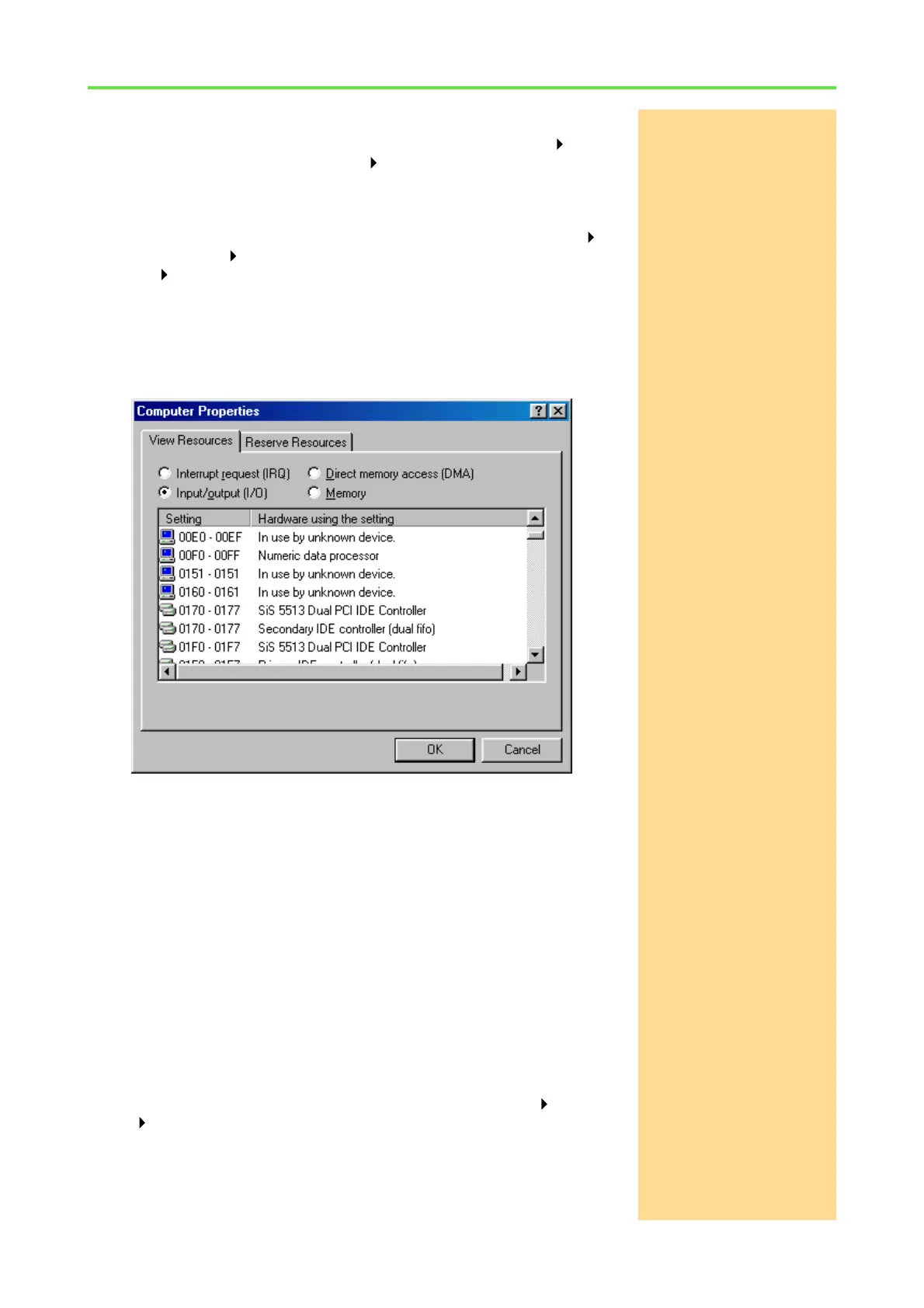
Under Windows NT call from the Windows start menu: Programs Ad-
ministrative Tools (Common) Windows NT Diagnostics;
choose the tab „Resources“ and then the button „I/O Port“.
– Windows 2000, XP
Call the device manager from the Windows start menu: Settings
Control panel System, tab "Hardware". Select the display View-
Panel Resources by type and then "Input/Output (I/O)".
Please pay attention to the fact, that devices using an ISA interface are not
always recognized and registered by Windows. Even the display: "Used by
unknown device“ does only appear, if a communication has been effected
via this address after start-up of the computer! If necessary, check the hard-
ware manual of the device, which may cause address conflicts.
Under Windows 2000 and XP you should install your ADlink PC ISA board,
ADwin board or ADwin-light board by using the hardware wizard, see
chapter 3.1.2 and 3.1.3.
Checking the address
assignment
In order not to have conflicts with an already existing ADwin system that has
an ISA slot using the link address 150h, there are two possibilities to change
the hardware addresses:
1. Changing the address in the operating system
2. Changing the address via DIP switch
Changing the address in the operating system
The fast possibility is to set the link address of the ADpcmcia board per soft-
ware to 190h. The disadvantage is the loss of the plug & play functionality,
because this address is reserved by Windows as long as you cancel the res-
ervation in the same way.
Call the device manager from the Windows start menu: Settings Control
panel System.
The device manager displays under "PCMCIA
connector" (under Windows
2000 in the newly made directory Computer\ADwin) the ADpcmcia board of
Jäger Messtechnik. Select it by double-clicking.


 To Next Page